


How to Install SSL Certificate on Apache
Introduction
Securing your Apache server with SSL is essential to protect data, build customer trust, and comply with industry security standards.
In this guide, we’ll walk you through how to apply an SSL certificate on Apache in Linux, covering installation, configuration, and verification. Whether you’ve purchased a commercial SSL or opted for a Cheap SSL Certificate, this step-by-step tutorial will help you complete the SSL setup smoothly.
Prerequisites
Before you begin, make sure you have:
- Linux Server with Apache Installed
- SSL Certificate Files (including .key and .crt files). If you are still looking for a cheap SSL certificate, explore our SSL certificate offerings.
- Sudo/root privileges on the server
Steps to Apply an SSL on Apache
Step 1: Upload the .key and .crt Files
Upload the .key and .crt files to your Linux Server.
Step 2: Configure the VirtualHost Block
Open the configuration file of the website.
Configure the VirtualHost file block for the site. Refer to VirtualHost *:80 to create a VirtualHost for 443, and add the following code.
<VirtualHost *:443>

        SSLEngine on

        SSLCertificateFile /path/to/your_domain_name.crt

        SSLCertificateKeyFile /path/to/your_private.key

</VirtualHost>
Step 3: Enable SSL Module
For CentOS server, use httpd -M | grep ssl to check if the SSL module is installed. If it’s not, install it through yum install mod_ssl.
For Ubuntu server, use apache2 -M | grep ssl to check if the SSL module is installed. If it’s not, install it through apt install mod_ssl.
Step 4: Test Your Apache Configuration File
For CentOS and Ubuntu servers, please run apachectl configtest. If Syntax OK is displayed, the configuration file setup was successful.
Step 5: Restart Apache
For the CentOS server, restart the Apache Service by using systemctl restart httpd.
For the Ubuntu server, restart the Apache Service by using systemctl restart apache2.
Step 6: Verify SSL Installation
You can access your website via https://your\_domain\_name now.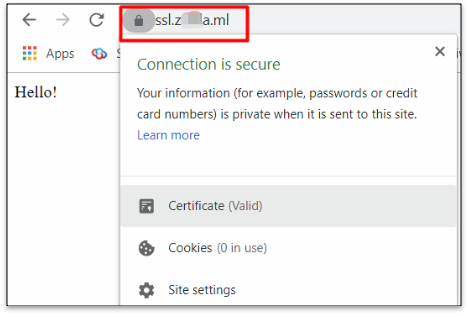
Step 7: Add Redirection from HTTP to HTTPS
7.1 Install the redirect module
For the CentOS server, please refer to the following:
yum install mod_rewriteFor the Ubuntu server, please refer to the following:
apt install mod_rewrite7.2 Edit configuration file
Modify the /etc/httpd/conf/httpd.conf file and add the following at the end of the file.
RewriteEngine On

RewriteCond %{HTTPS} off

RewriteRule (.*) https://%{HTTP_HOST}%{REQUEST_URI}
Step 8: Restart Apache
For the CentOS server, restart the Apache Service by using systemctl restart httpd.
For the Ubuntu server, restart the Apache Service by using systemctl restart apache2.