


Billing
Billing Overview
Billing Operations
The Billing Operations section lets you view and filter invoices, make payments using credits or other methods, and add funds for easy billing management.
Invoice
The Invoices page provides a centralized place to manage all your billing records on the platform. It allows you to easily view, track, and process payments for all services, including servers, SSL, domains, and more.
- Find invoices
You can filter invoices by Invoice ID, Due Date, Date Paid, Status, and Service Name.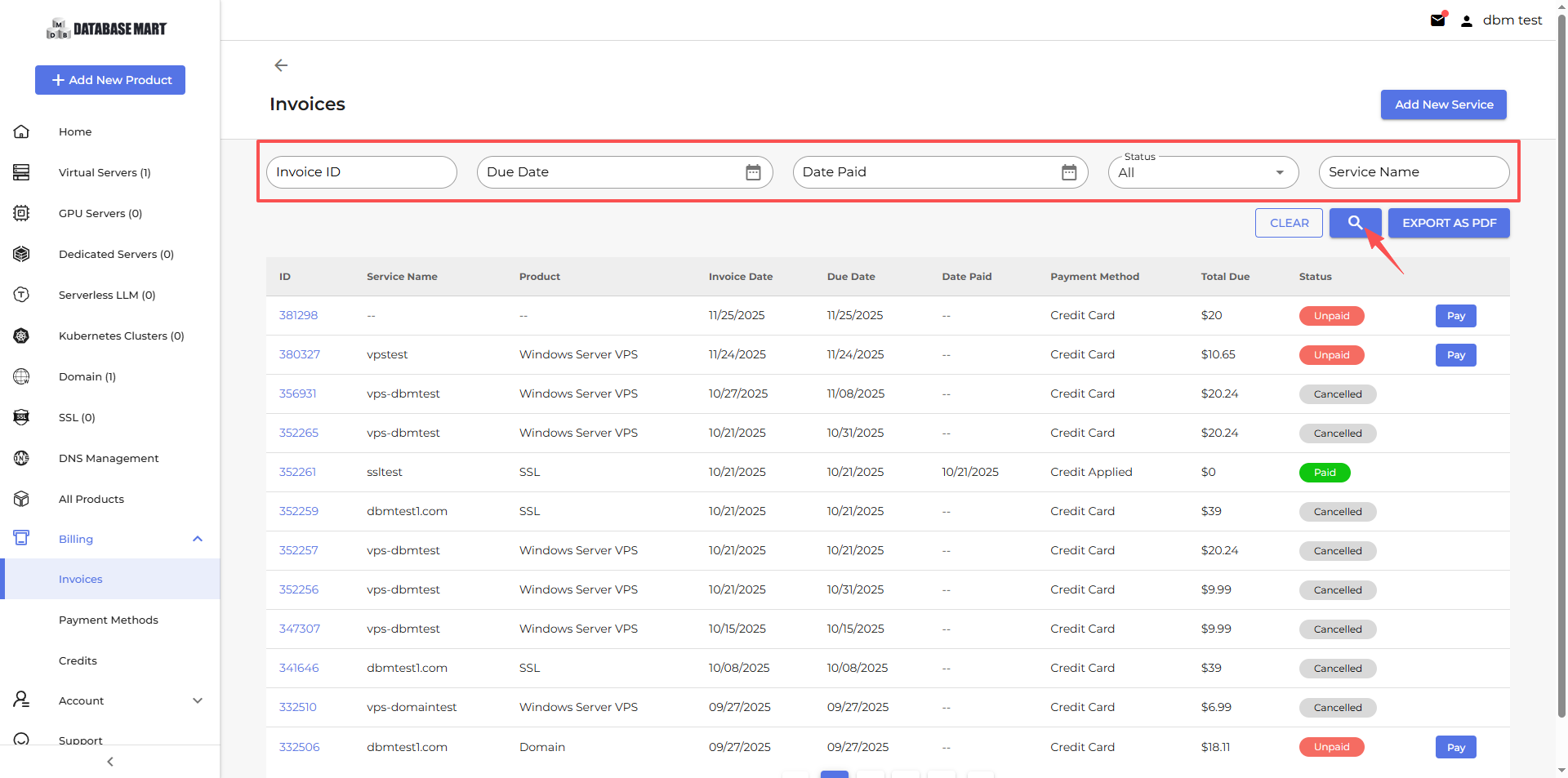
- Pay Invoices
For unpaid invoices, you can click ”Pay“ and complete the payment.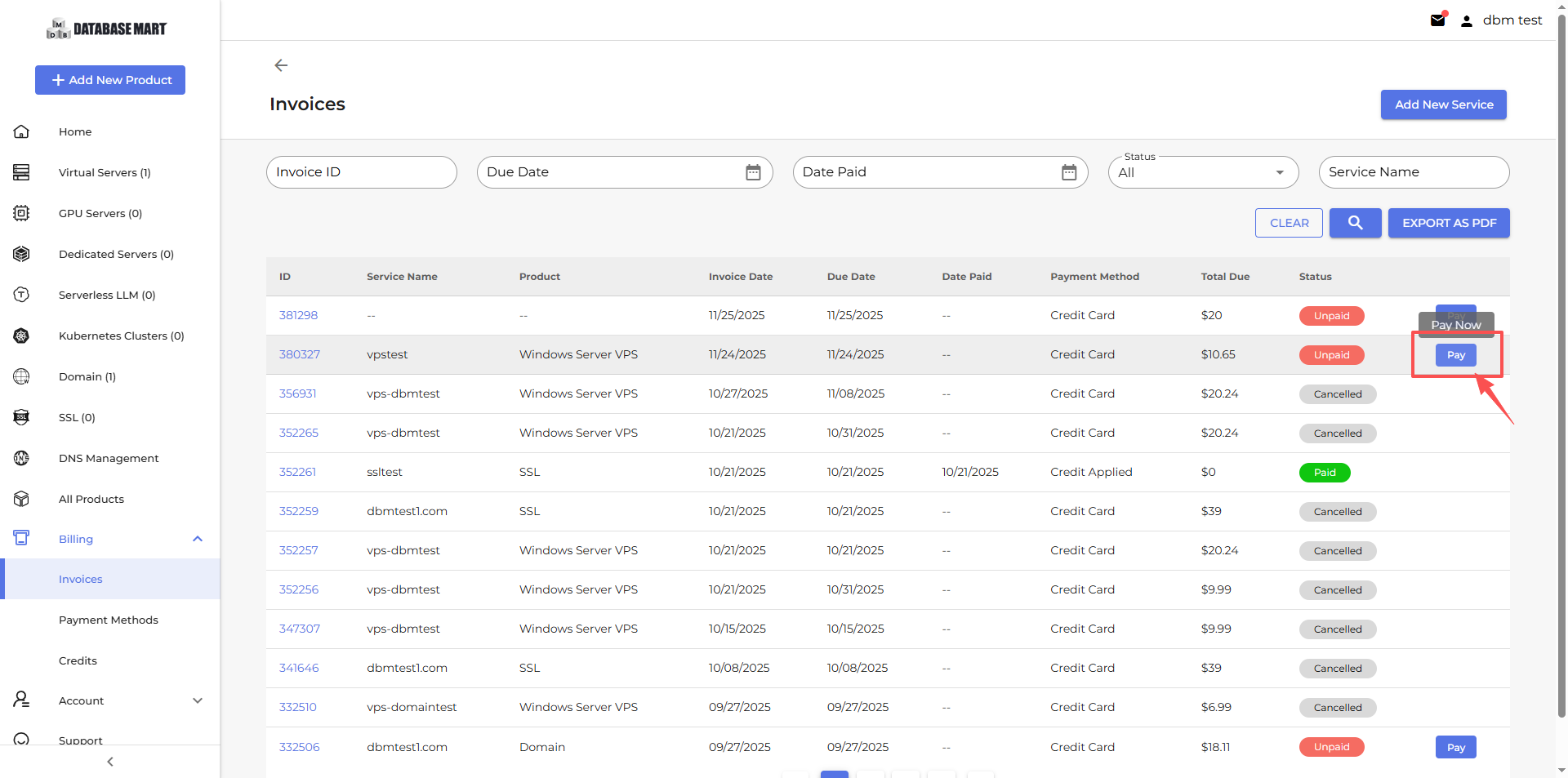
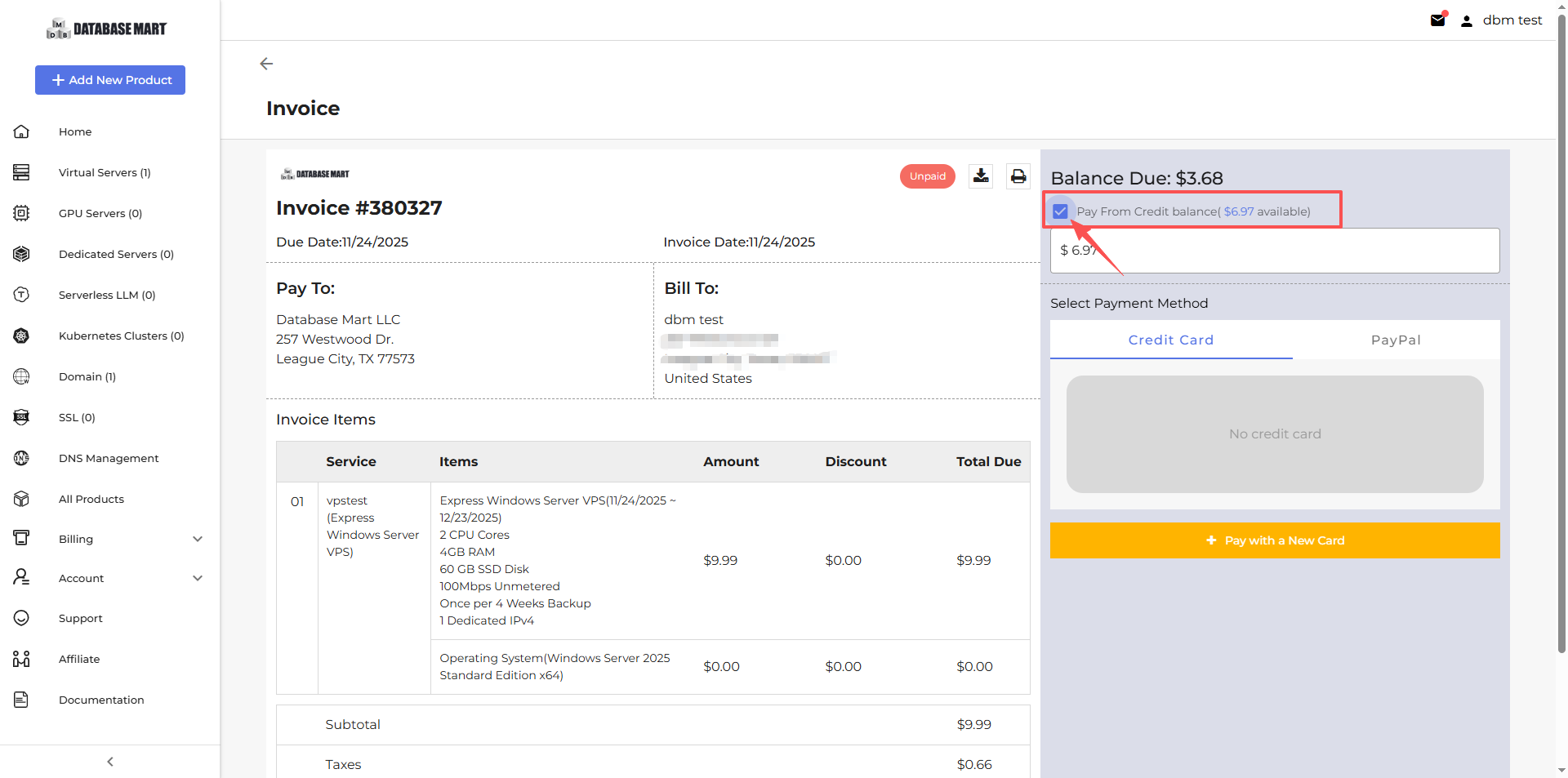
Note: If your account has a credit balance, it will be applied to offset your bill first: Pay>Pay From Credit Balance
Payment Methods
Add Credtit Card & Set up Auto-CC
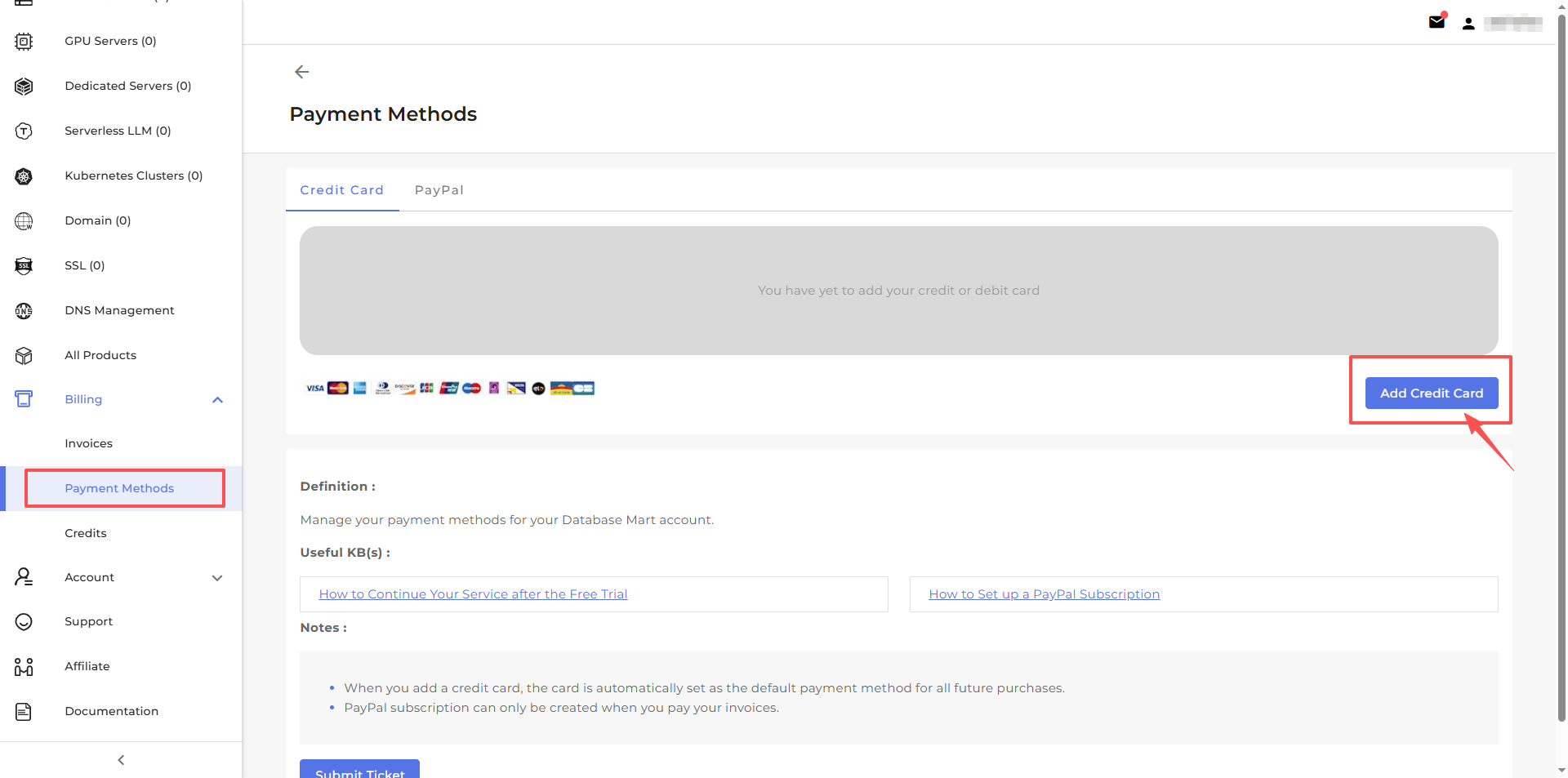
- Step 1: Go to Billing > Payment Methods.
- Step 2: Click Add Credit Card.
- Step 3: Enter your card number or use the autofill link.
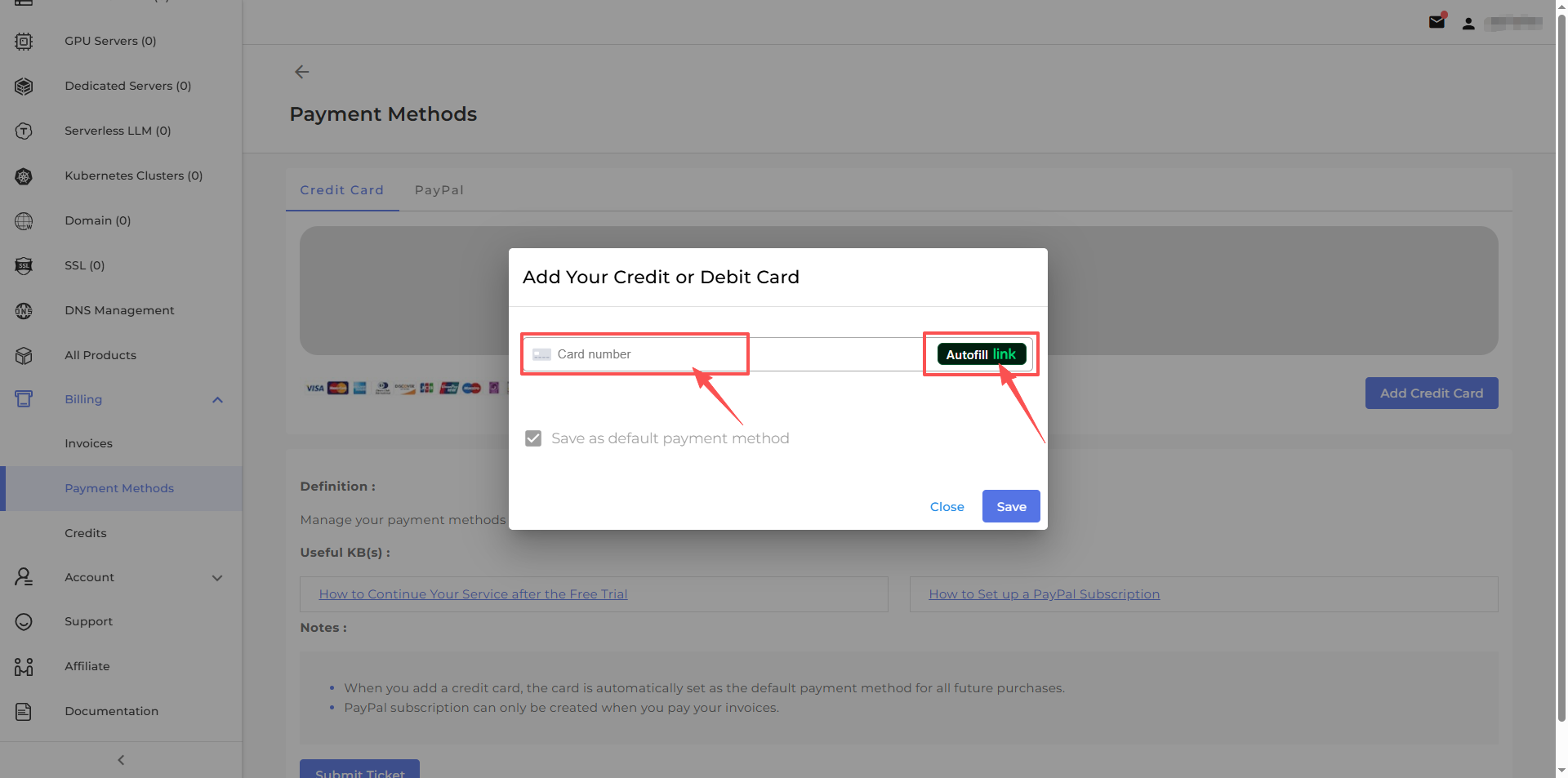
- Step 4: Click Save to add the card.
Set up a Paypal Subscription
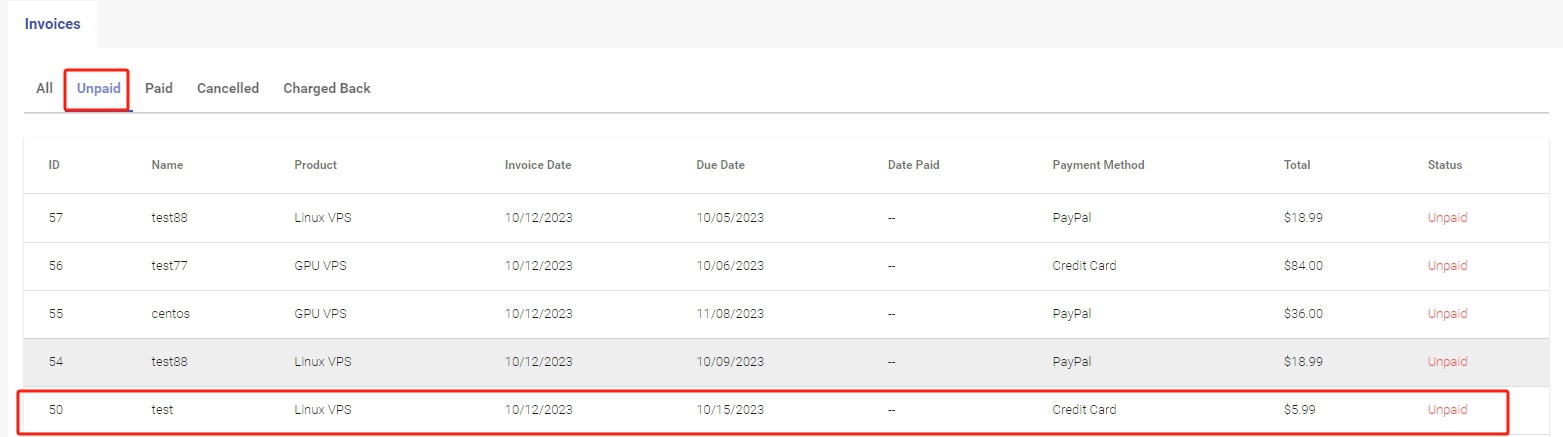
- Step 1: Choose an unpaid invoice.
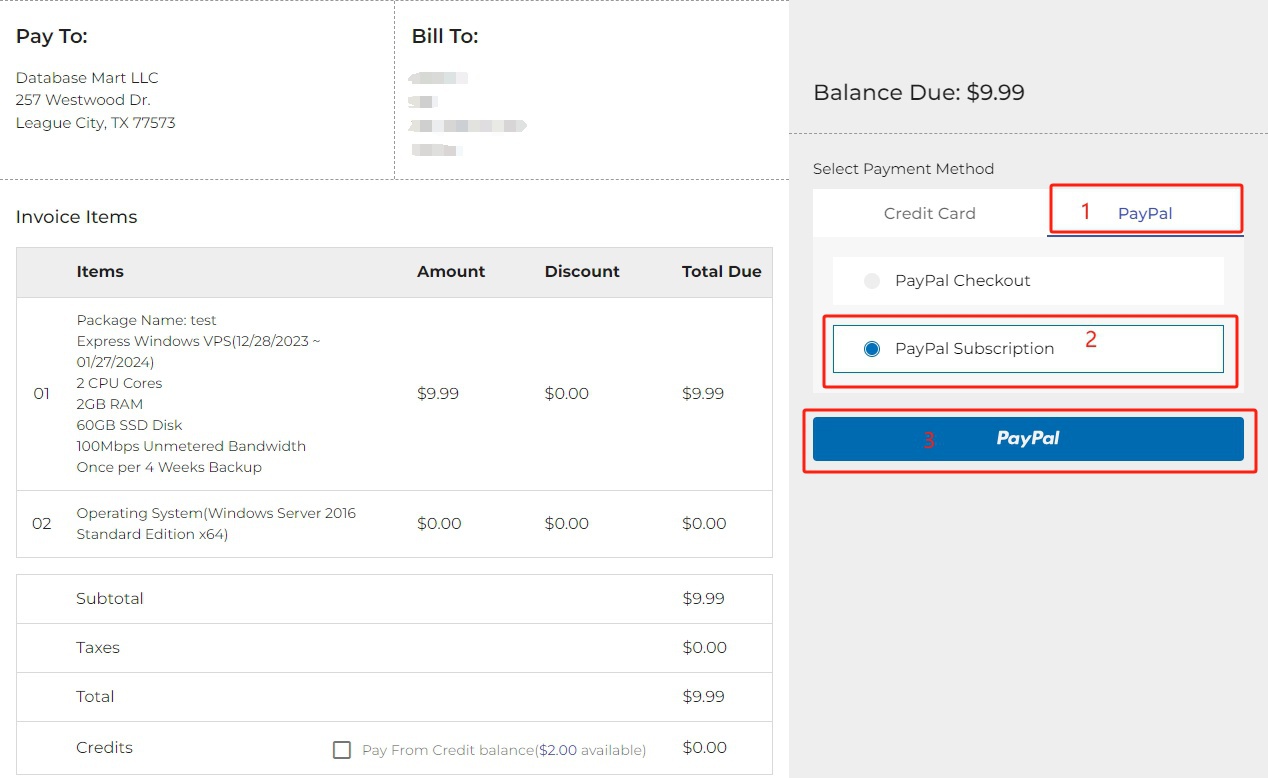
- Step 2: Choose PayPal tab > PayPal Subscription > the PayPal button.
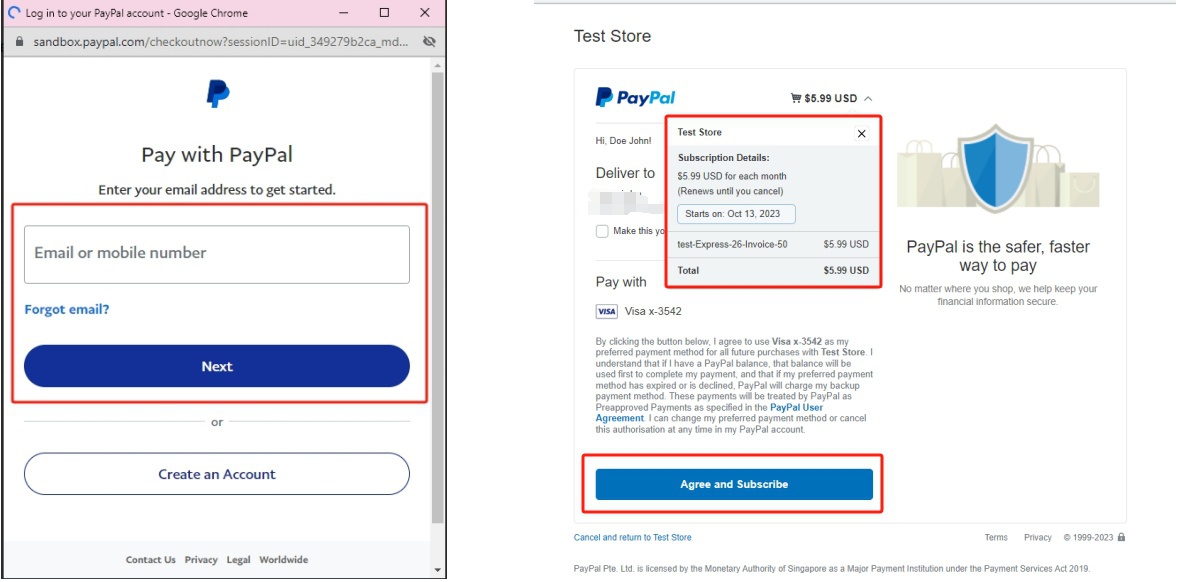
- Step 3: Now you will be taken to Paypal website to complete your payment. Log in to your PayPal account with credentials. Click "Agree and subscribe."
- Step 4: You can now go to the Payment Methods tab to view the PayPal subscription. If you would like to cancel the subscription, simply click the CANCEL button.
- Step 1: Choose an unpaid invoice.
How to Handle Payment Failures
- When Credit Card Payment Failed:
-1. Make sure your credit card information, such as the card number, password, and expiration date, are correct.
-2. If a debit card is used, please make sure that there is sufficient fund for the payment. If a credit card is used, please make sure the payment is not exceeding the credit limit.
-3. Try making a payment a few moments later.
-4. Try a different browser to make a payment.
-5. Use a different card to pay.
-6. Change the payment method to PayPal.
-7. Contact your card issuing bank to authorize this transaction. - When PayPal Payment Failed:
-1. Make sure your PayPal account and password are correct.
-2. Make sure your PayPal account has enough balance.
-3. Change the payment method to credit card.
-4. Check the email from PayPal for more information if your payment is On Hold.
Note: If the above methods do not resolve the issue, please contact us, so we can help investigate the reason for the failed payment.
- When Credit Card Payment Failed:

Credits
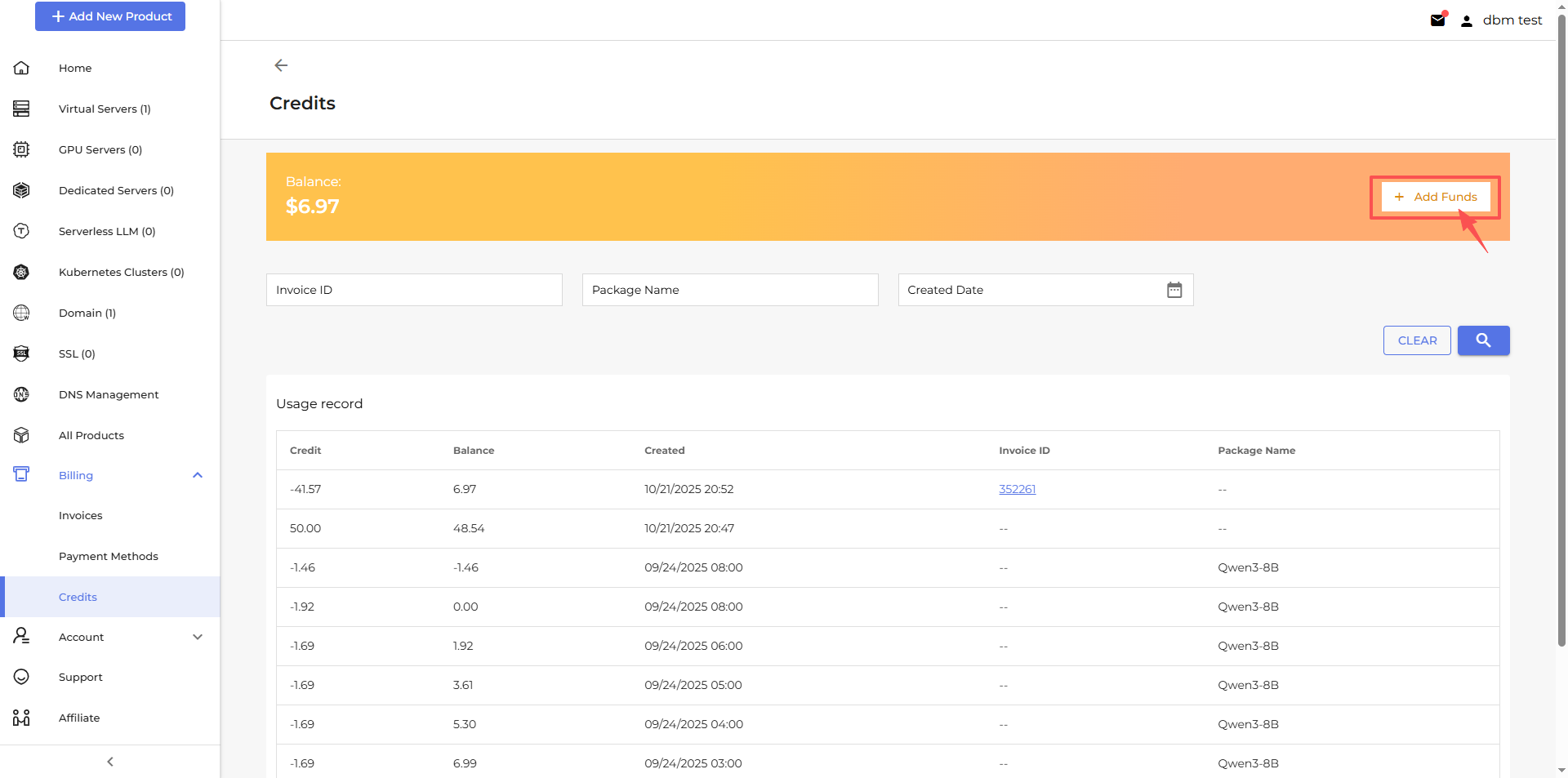
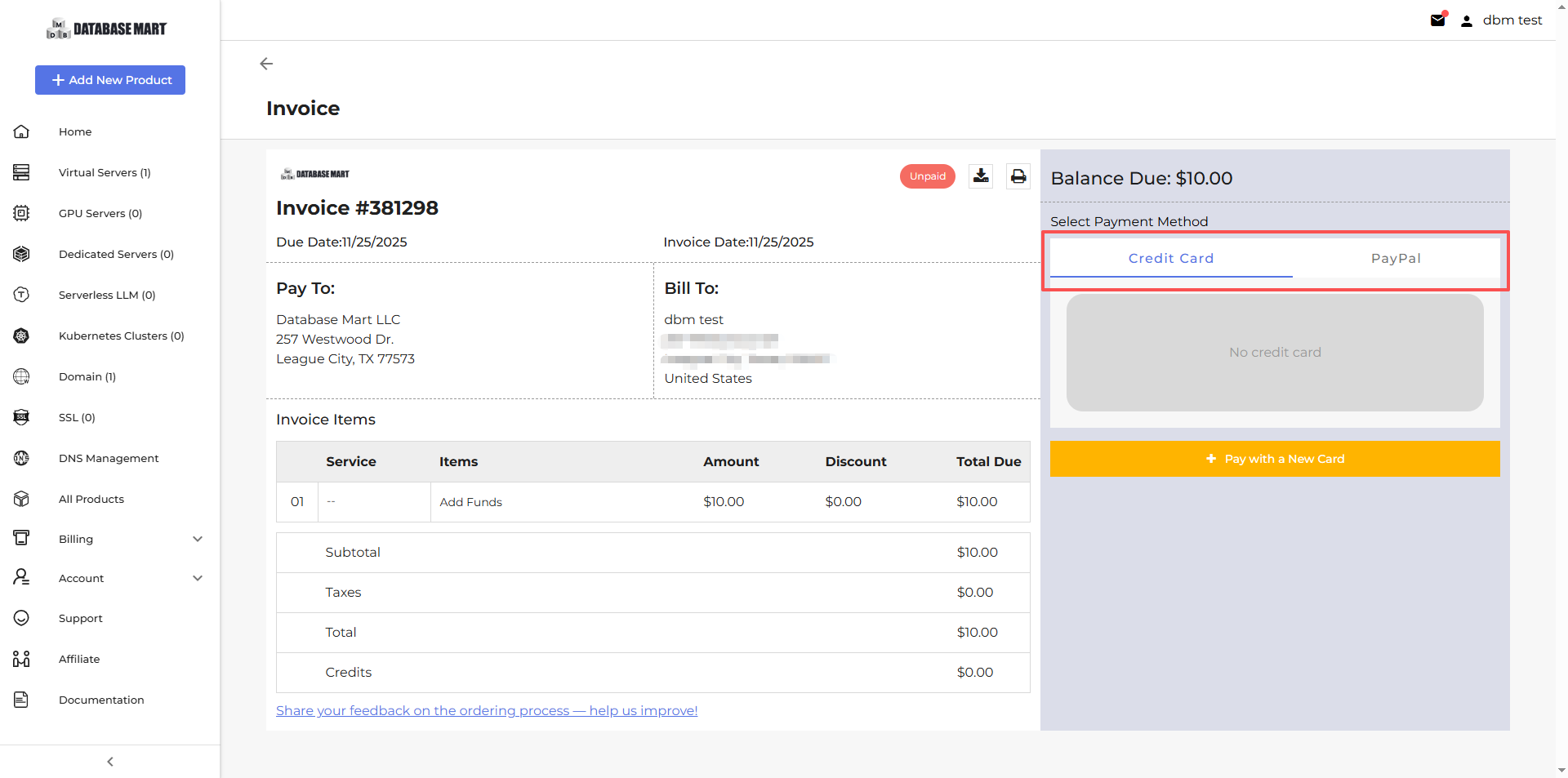
How to Add Funds:
- Step 1: Go to Credits > Add Funds.
- Step 2: Select your preferred payment method.
- Step 3: Enter the amount you want to add.
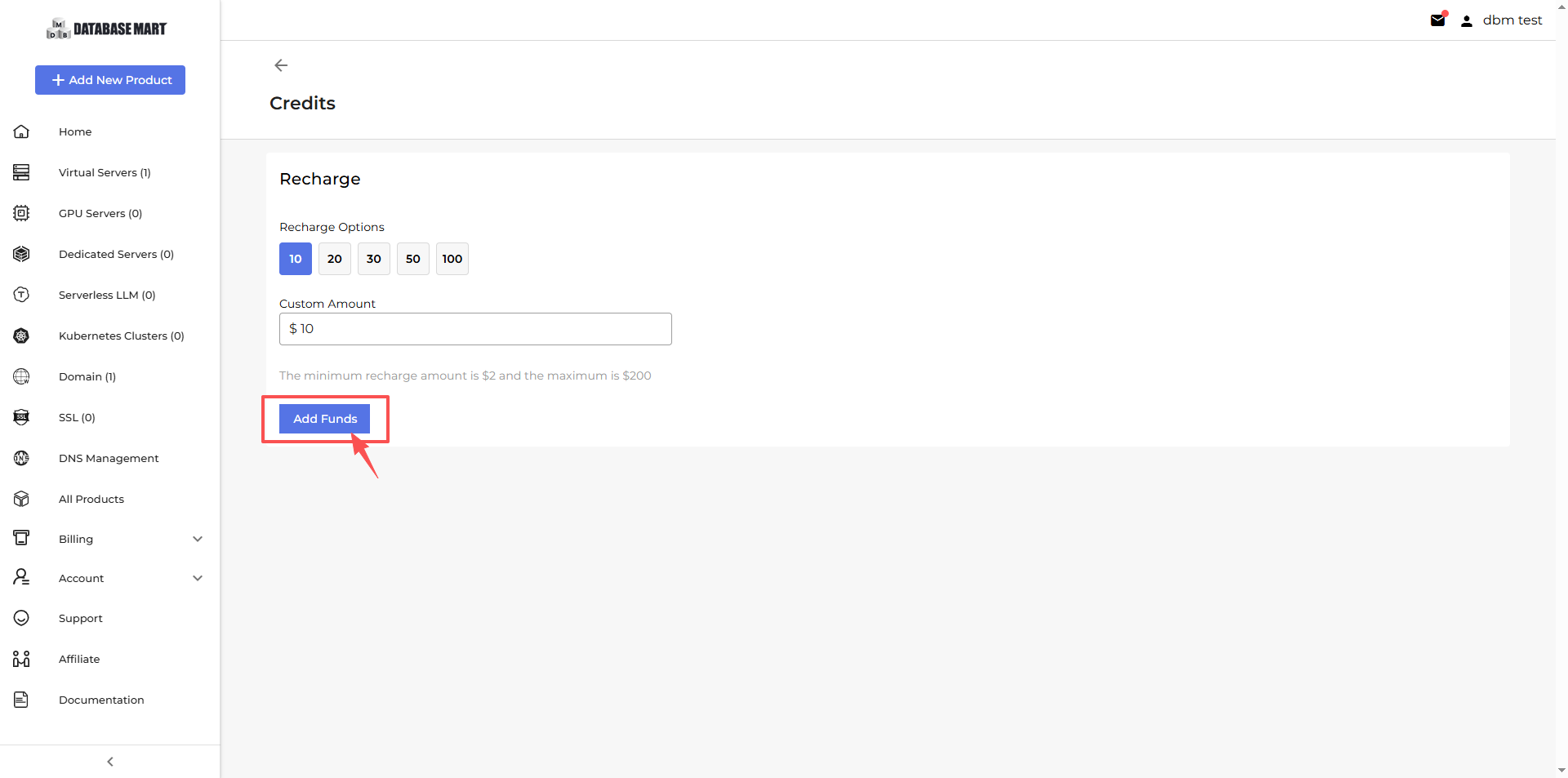
- Step 4: Confirm the payment to top up your account balance.
Order a Service
The Order Service section provides quick access to guides for ordering various DBM services. Whether you need a VPS, dedicated server, GPU server, Kubernetes cluster, Serverless LLM, domain, or SSL certificate, you can follow the corresponding documentation to complete your order with ease.