Account
Account Overview
Account Registration
This Account Registration section gives you a simple overview of how to register a DBM Control Panel account, common prompts you may see, and important notes to know. With this information, you can complete registration smoothly and start using all features right away.
Registering a DBM Control Panel account is straightforward. All you need to get started is a valid email address, and the entire sign-up process can be completed within minutes. Just visit the registration page, enter your email, follow the on-screen instructions, and you’ll be able to access your control panel quickly and easily.
Registration link: https://accounts.databasemart.com/signup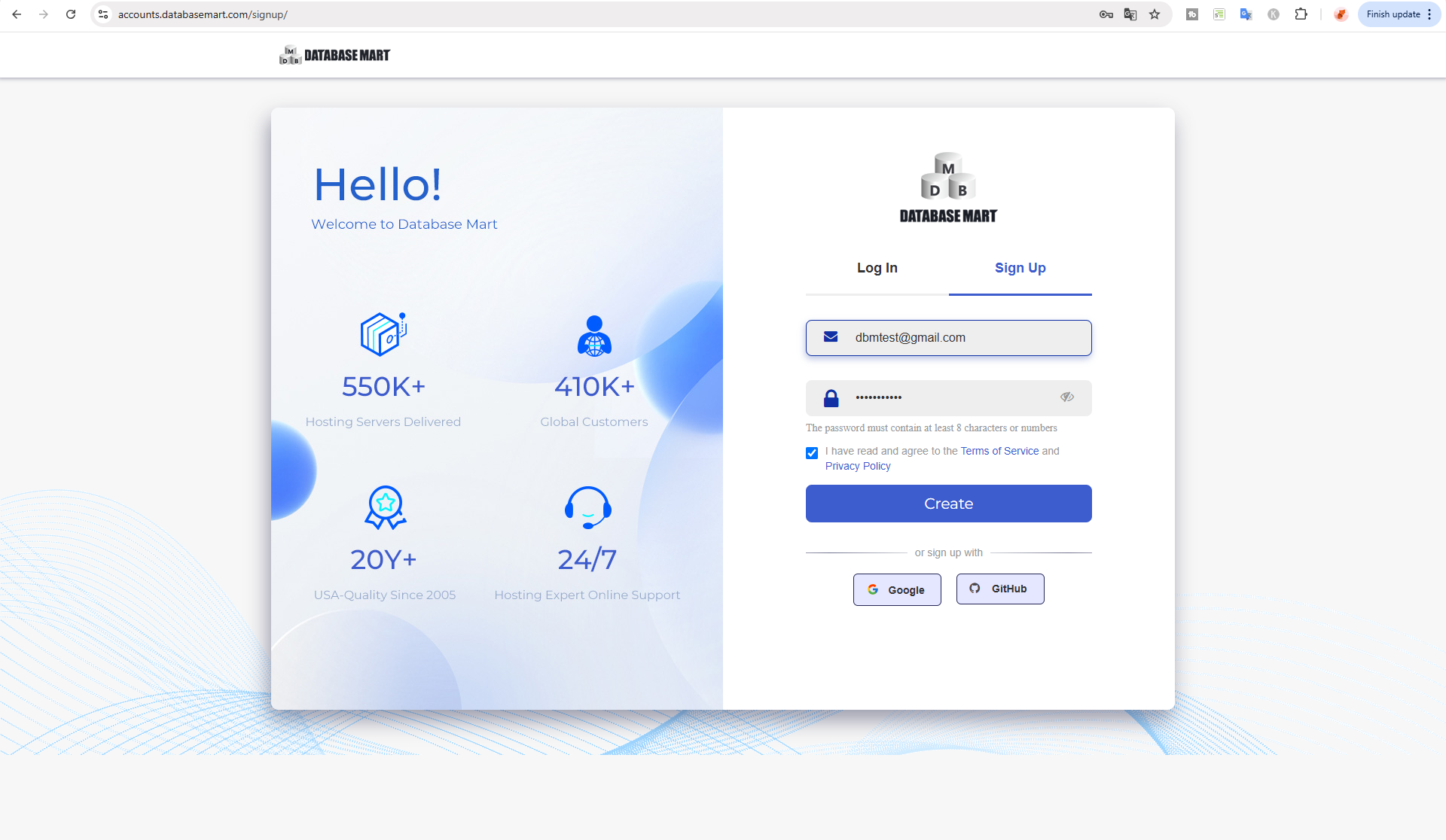
Note: If you encounter the following message during registration: “Regrettably, per our TOS, registration is currently unavailable for you.” It means our system has detected activity that does not meet our Terms of Service. In such cases, we are temporarily unable to provide further services.
Account Login
The Account Login section outlines the most common issues you may encounter when logging into your DBM Control Panel account, helping you quickly identify and resolve login-related problems.
During the login process, you may encounter the following issues:
| Error Message | Solution |
|---|---|
| Your account has been suspended. You are temporarily unable to log in. Please contact us if you have any concerns. | This occurs due to account misuse or not complying with our Terms of Service. Please check your previous emails for details or contact the Billing Team for assistance. |
| Please enter a correct email address and password. Note that both fields may be case-sensitive. | Entered username or password is incorrect. If forgotten, use the “Forgot Password” feature on the login page to reset credentials. |
| Illegal login | This occurs due to a temporary login restriction. Please try again using a different browser or network, or contact Support for assistance. |
| Invalid CAPTCHA | CAPTCHA entered incorrectly. If unreadable, click the image to refresh for a new one. |
| The verification code is incorrect. Please retry or get a new one. | If your account hasn’t been accessed for a long time or unusual login activity is detected, 2FA verification will be triggered. Please check your email and enter the verification code (valid for 20 minutes). If you don’t receive it, please contact Support. |
Account Password
The Account Password section explains how to manage and update your account password to keep your DBM Control Panel secure and accessible.
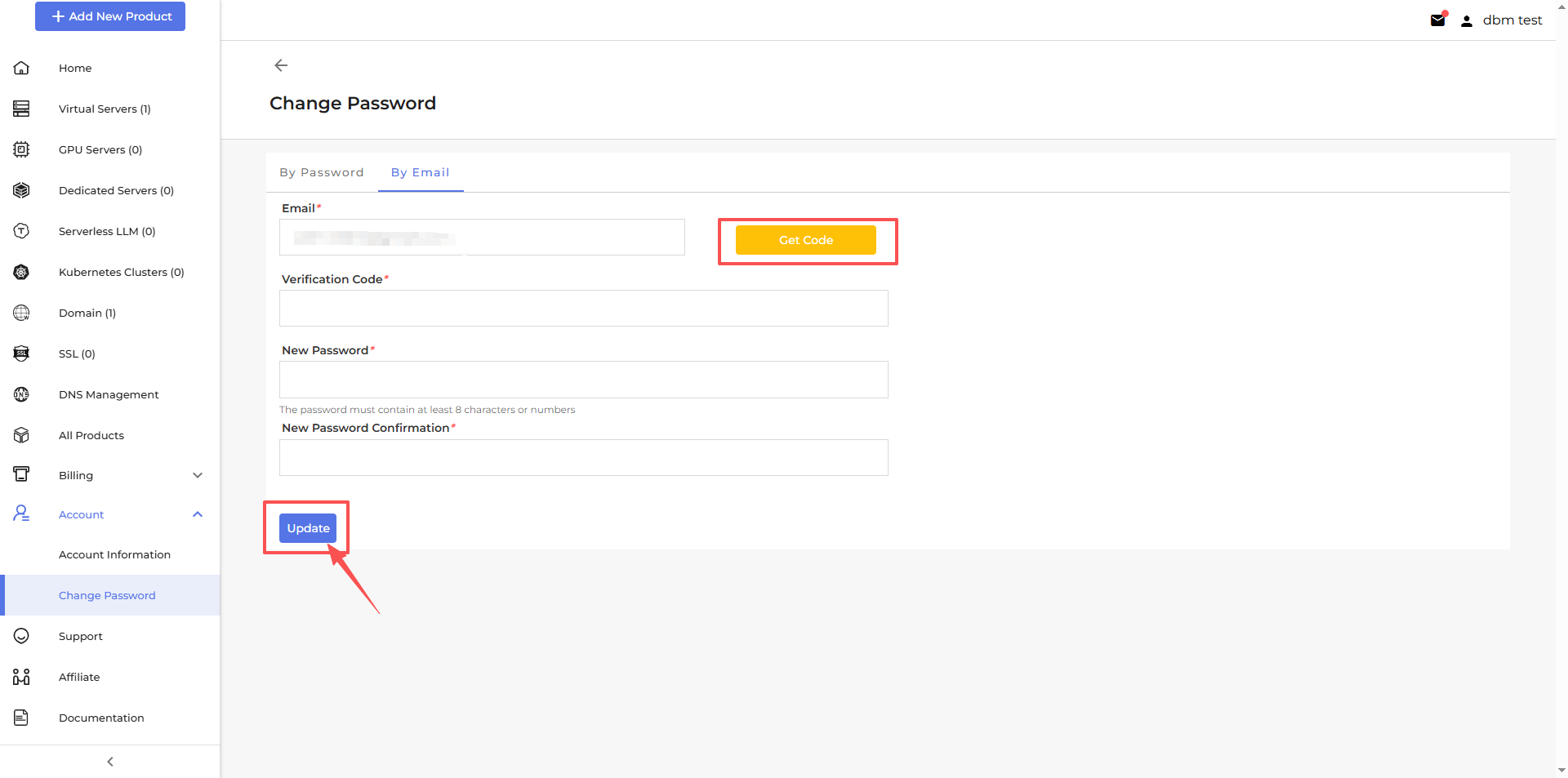
You can change your account password on the “Account > Change Password” page. Simply enter your current password or receive the verification code via email, set a new password, and click the Update button to complete the process.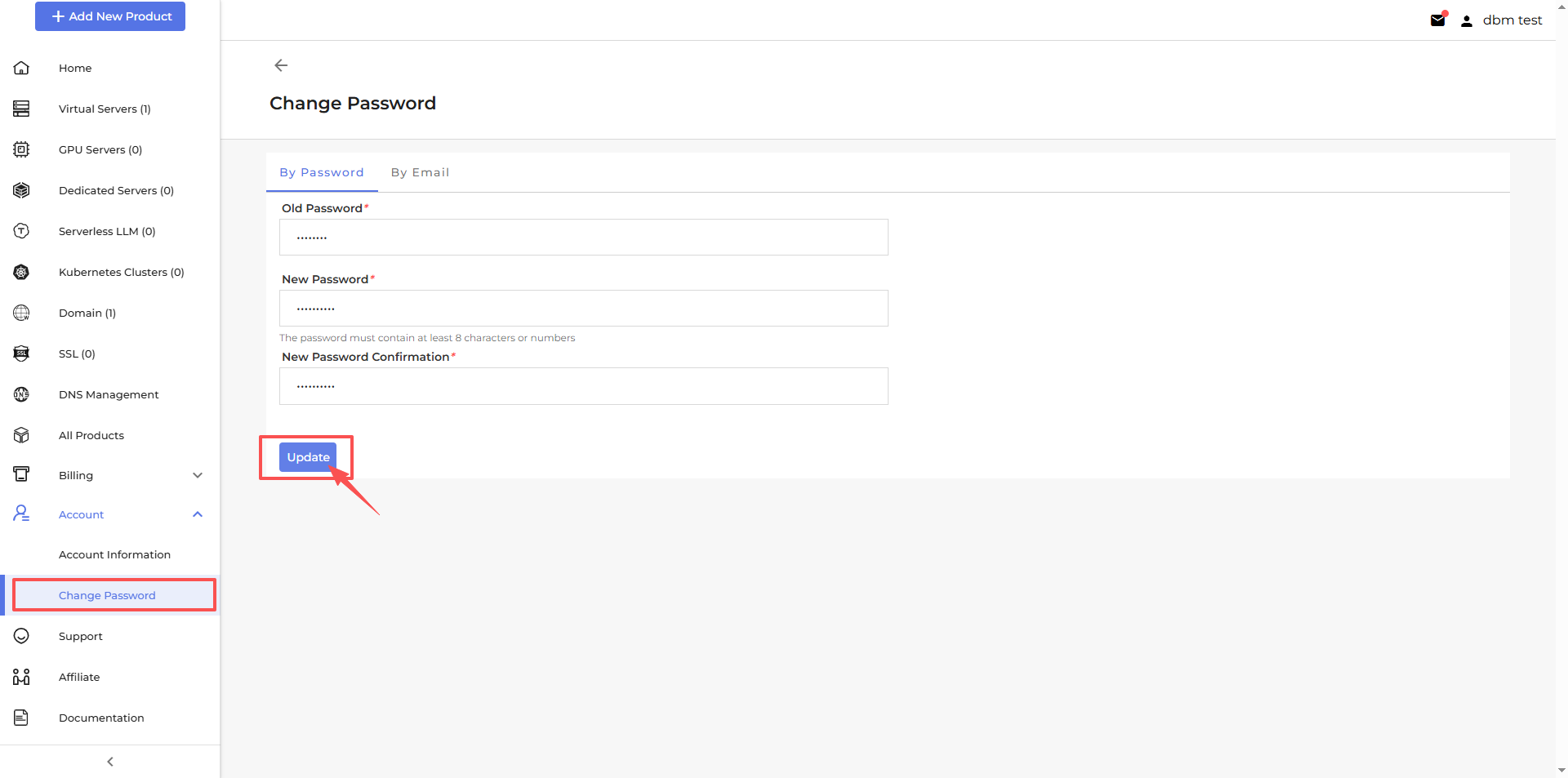
Account Security
The Account Security section protects your account with automatic 2FA for suspicious logins, email alerts, and security reminders.
Automatic 2FA for Suspicious Logins
If the system detects unusual login activity, two-factor authentication (2FA) is automatically activated. This ensures that only you can access your account, even if your password is compromised.
Email Notifications
You will receive real-time email alerts for security-related events, such as login attempts from new devices or locations. These notifications help you stay informed and respond quickly to potential threats.
Security Reminders
To help keep your account and personal information safe, we recommend:
- Securing your email account
- Choosing strong, unique passwords
- Keeping two-factor authentication (2FA) enabled
These simple steps greatly reduce the risk of unauthorized access and provide peace of mind.
Customer Support
The Customer Support section provides 2 ways to get help. Use Online Chat for real-time assistance and quick questions, or Submit Ticket for detailed support, technical issues, or non-urgent inquiries.
Support>Online Chat
Connect with our support team in real time through the online chat system. This option is ideal for quick questions, general inquiries, or immediate assistance with your services.
Support>Submit Ticket
Submit a support ticket for issues that require detailed investigation or technical review. Our team will analyze your request and respond with a professional solution. This method is recommended for non-urgent matters, billing questions, or troubleshooting that may require additional information.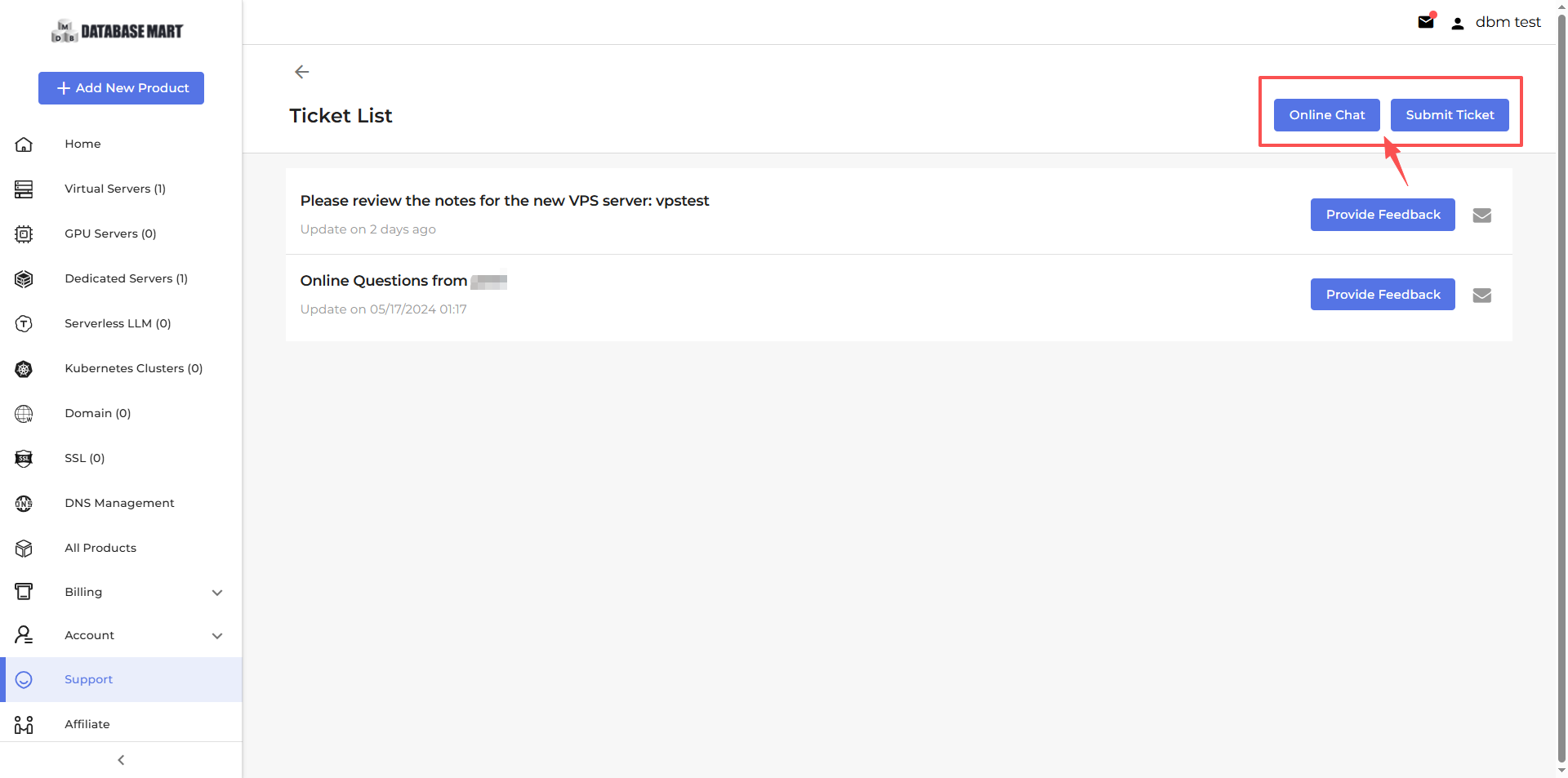
Service Management
Our control panel displays your services in different lists based on the products you have purchased. We provide a Virtual Server List, GPU Server List, Dedicated Server List, Serverless LLM List, Kubernetes Clusters List, Domain List, and SSL List. After purchasing a service, you can view it on the corresponding list page, where you can also perform the following actions.
Service Status
- Unconfirmed: The service has been created, but the payment process has not started.
- Pending: The service has been created, but payment is incomplete, or payment has been received and deployment is still in progress.
- Active: The service is fully provisioned and operating normally.
- Suspended: The service still exists but is temporarily disabled (such as due to overdue payments, cancellation request, policy violations, or the agent pausing it manually). Data is usually retained, and the service can typically be restored.
- Cancelled: The service is permanently terminated and will no longer incur charges. Once canceled, it usually cannot be restored and will be deleted.
View Active/Suspended/Pending/Unconfirmed/Cancelled Service 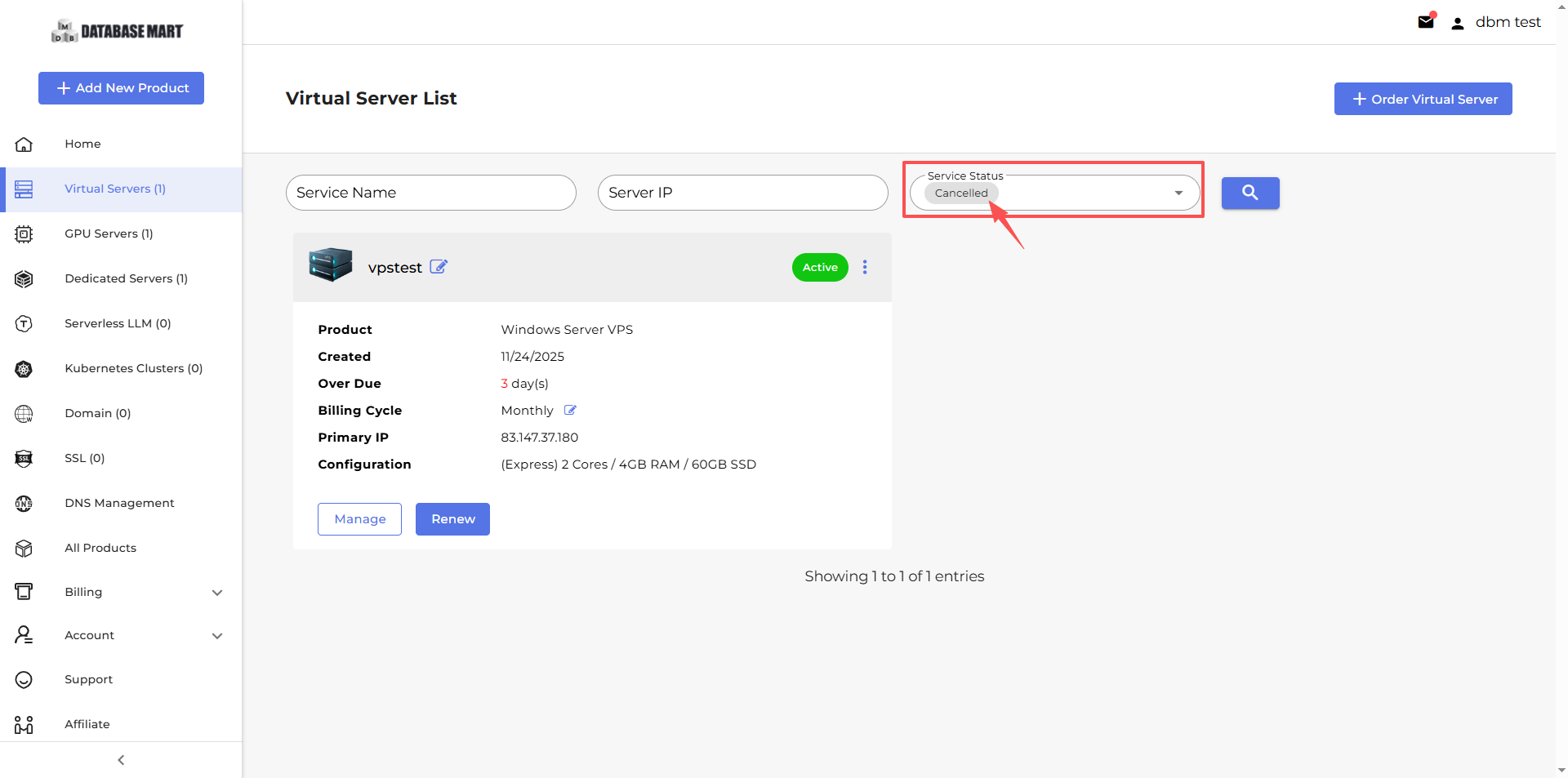
Change Server Password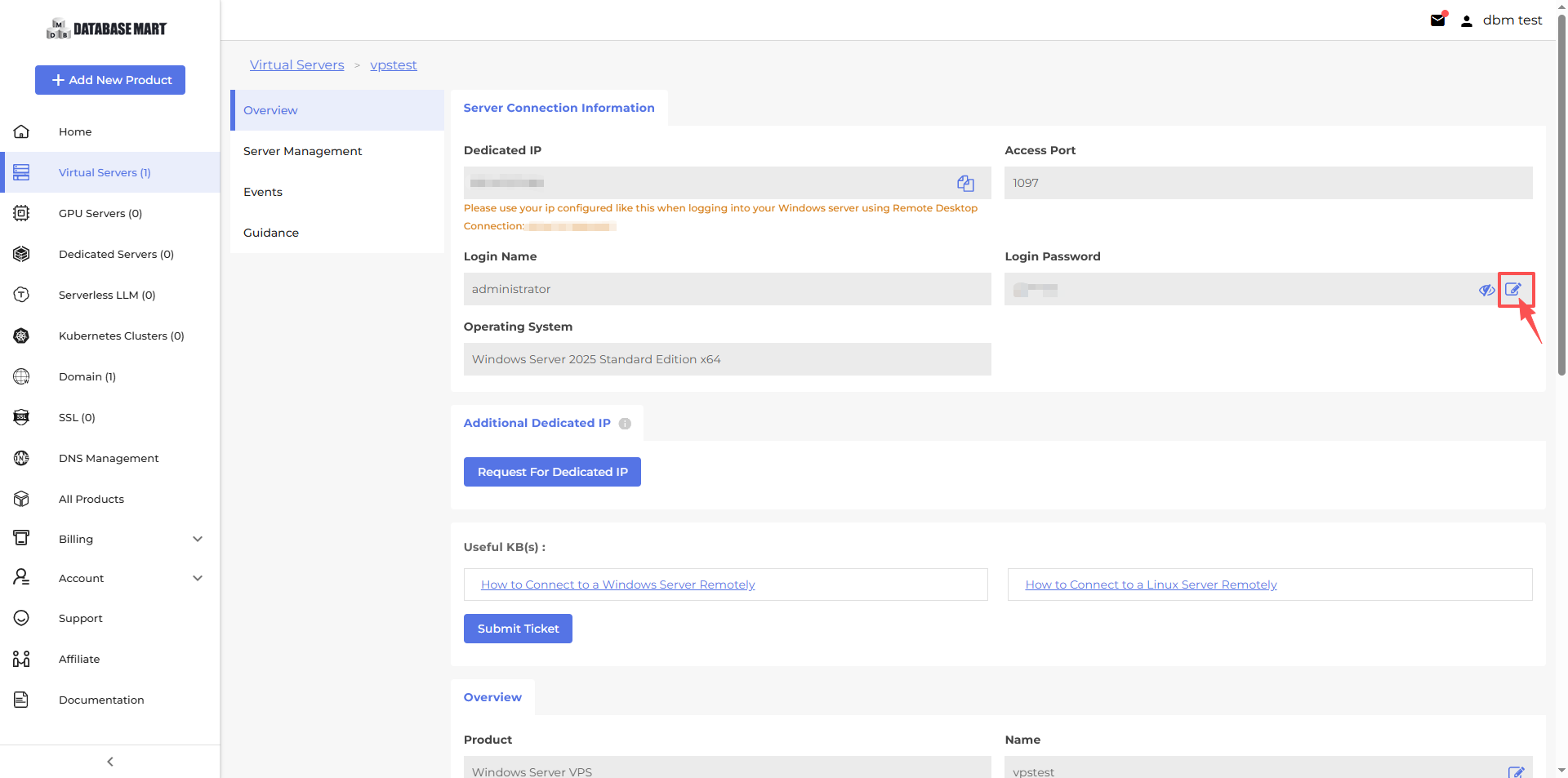
Change Service Name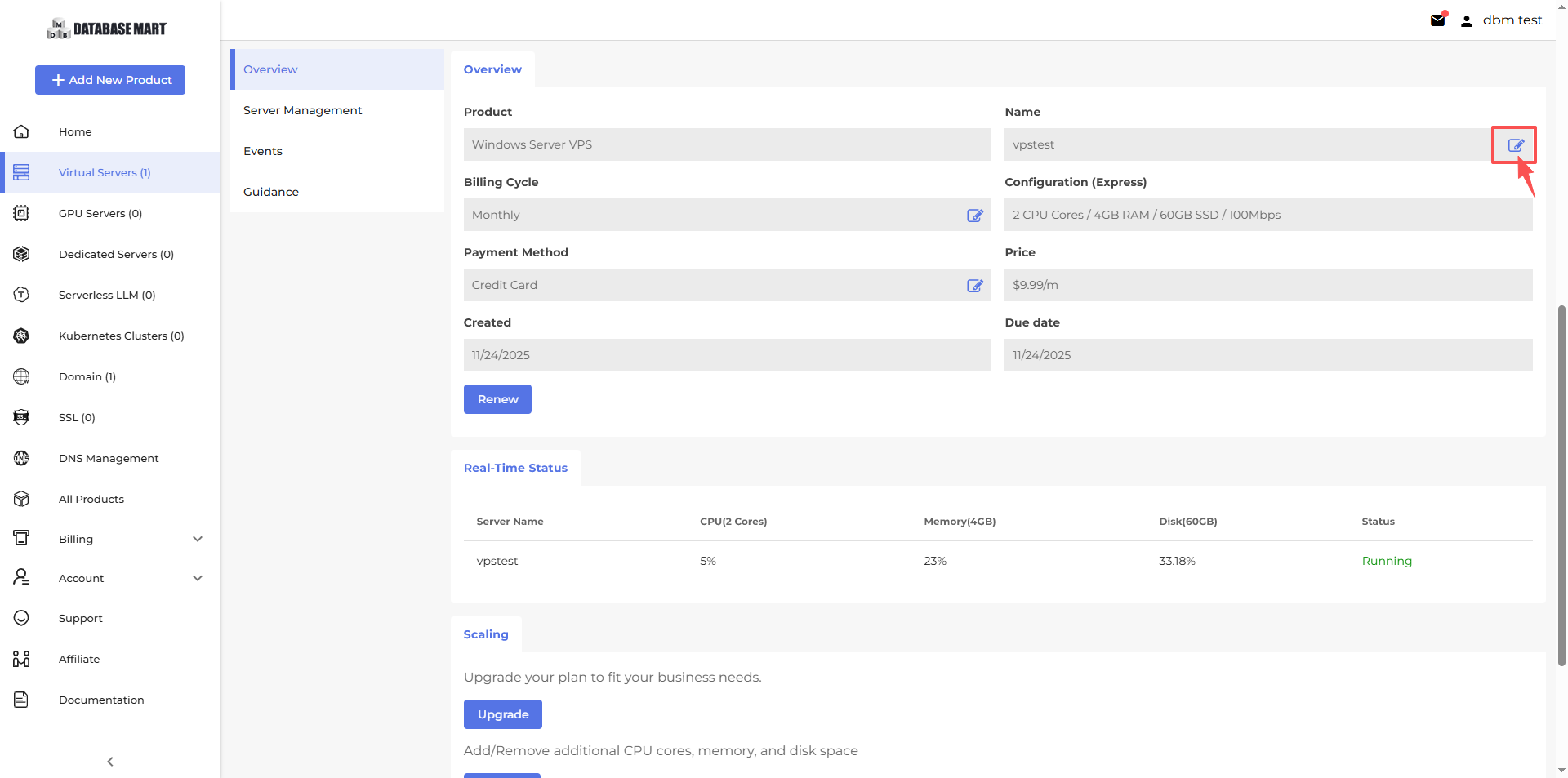
Change Billing Cycle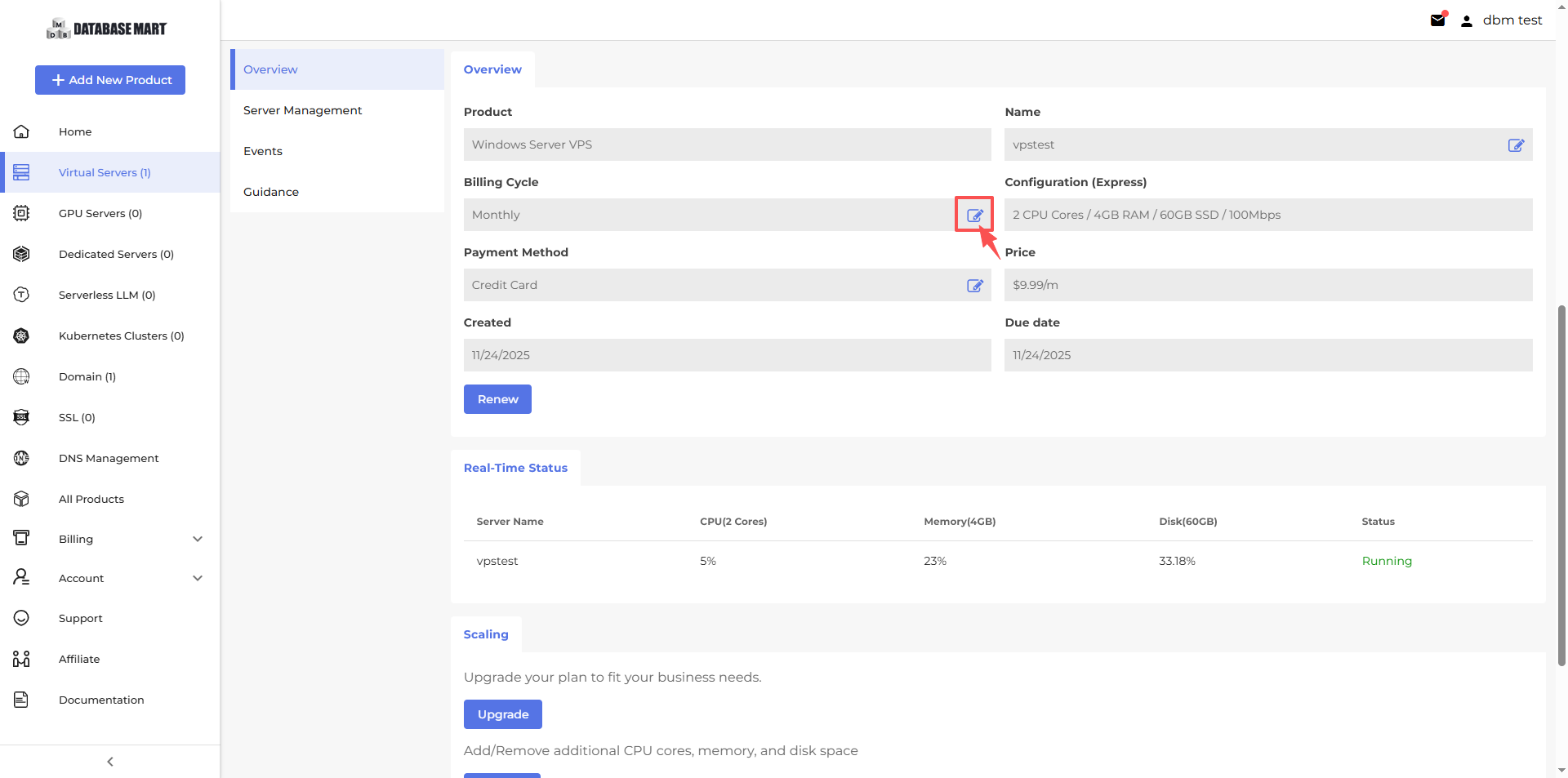
Change Payment Method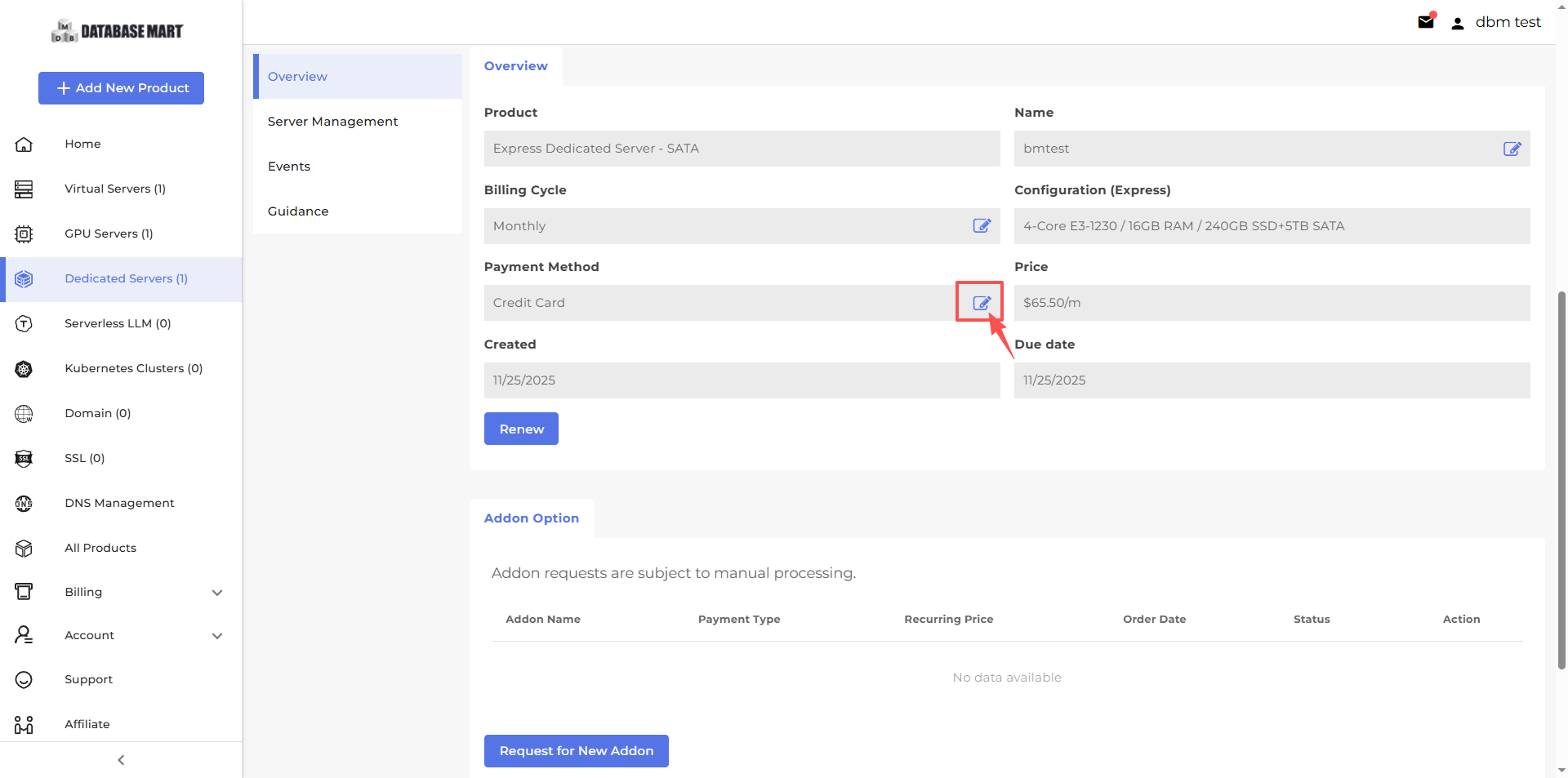
Service Renew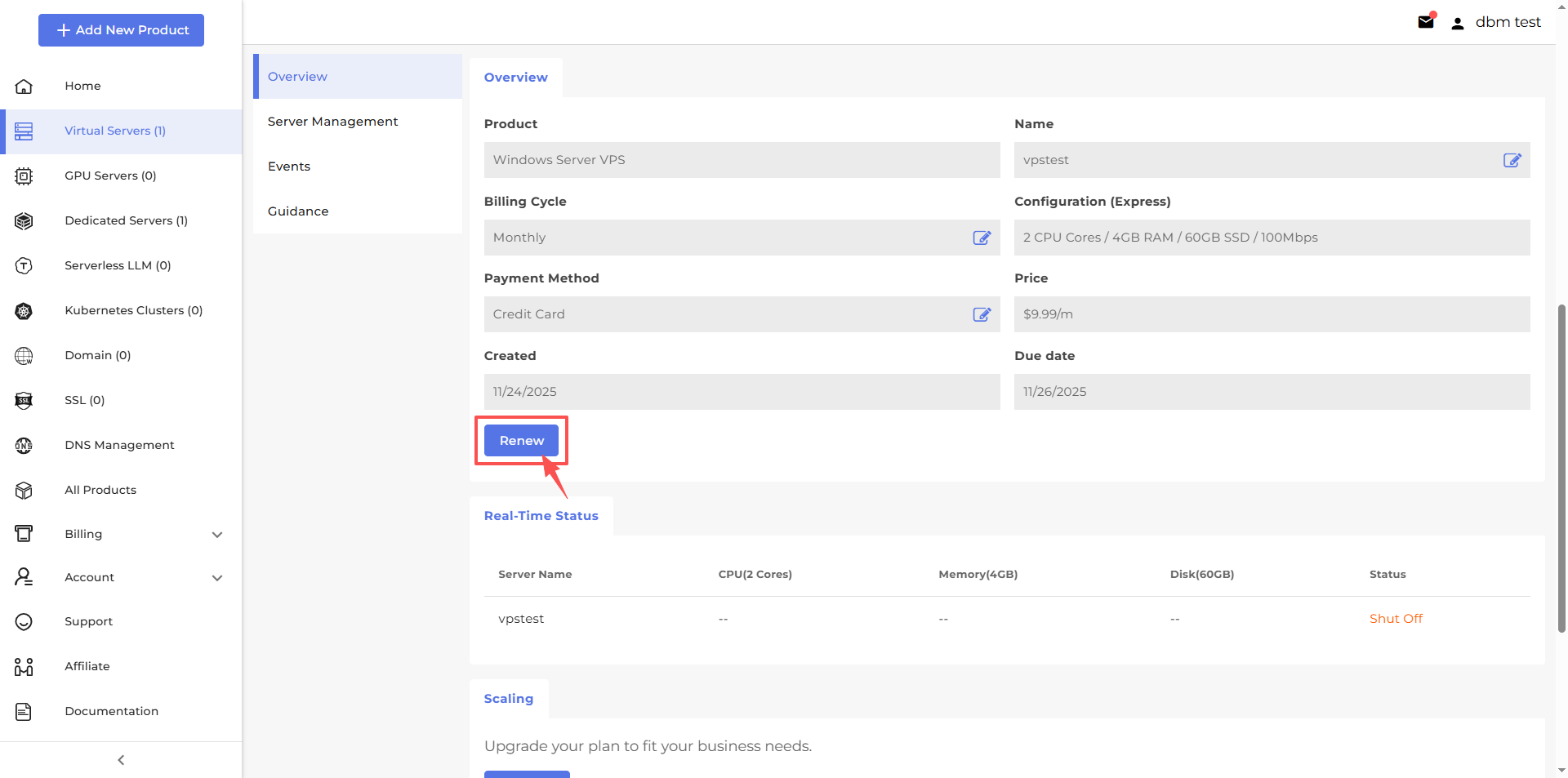
View Service Real-Time Status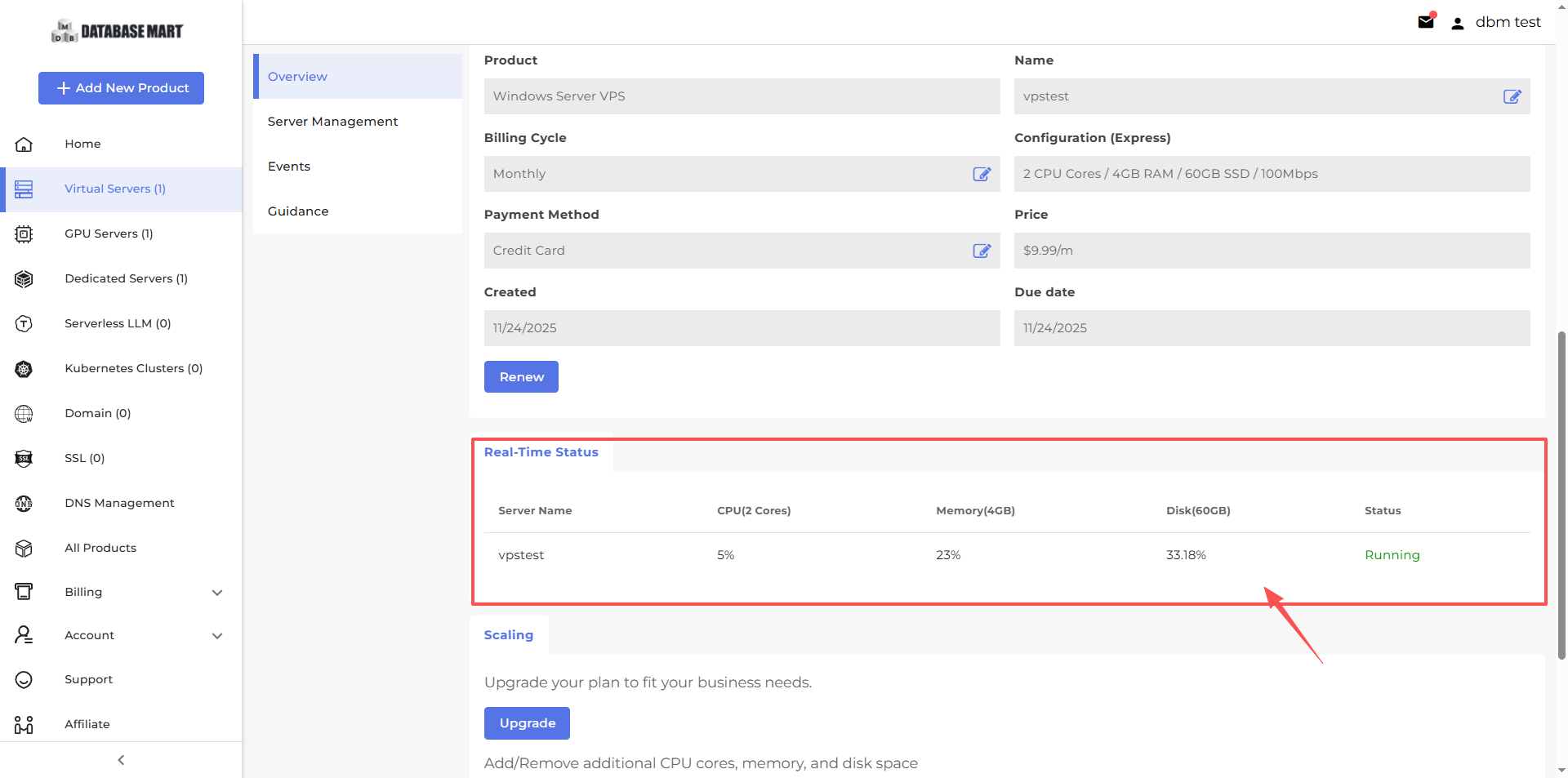
Upgrade (Only for VPS)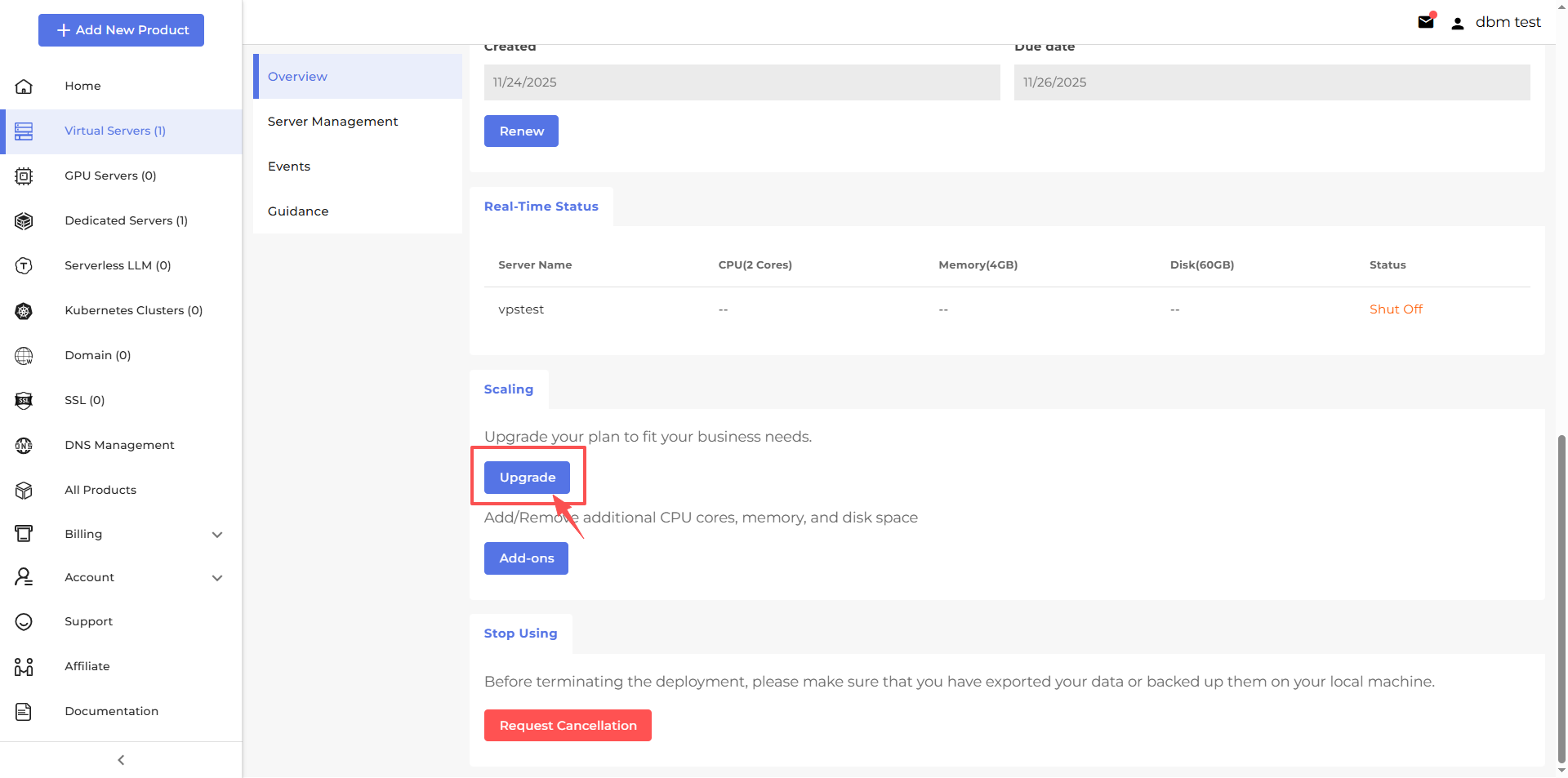
Request Addons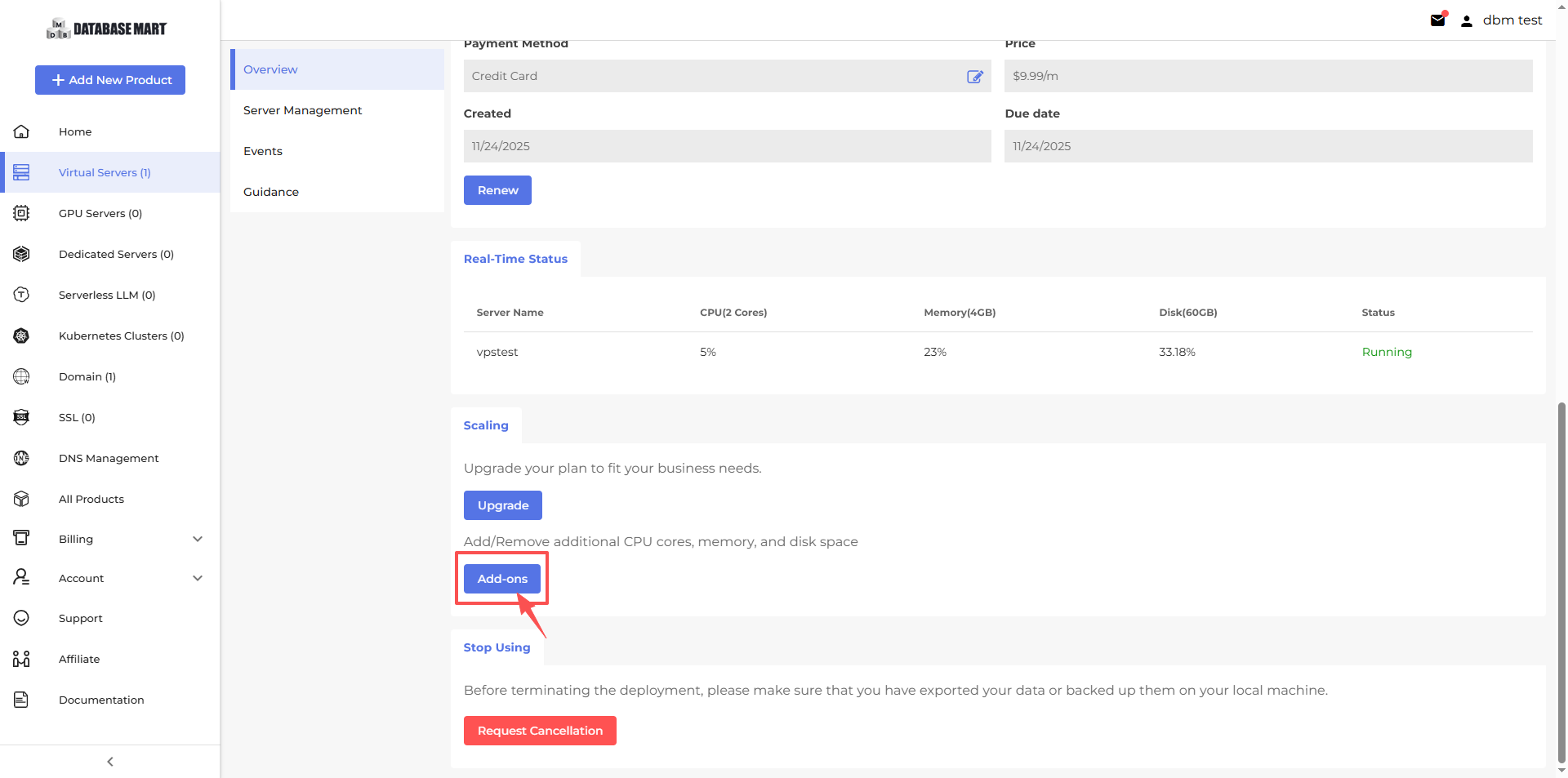
Cancel Service
Request Cancellation>Share Your Cancellayion Reason>Comfirm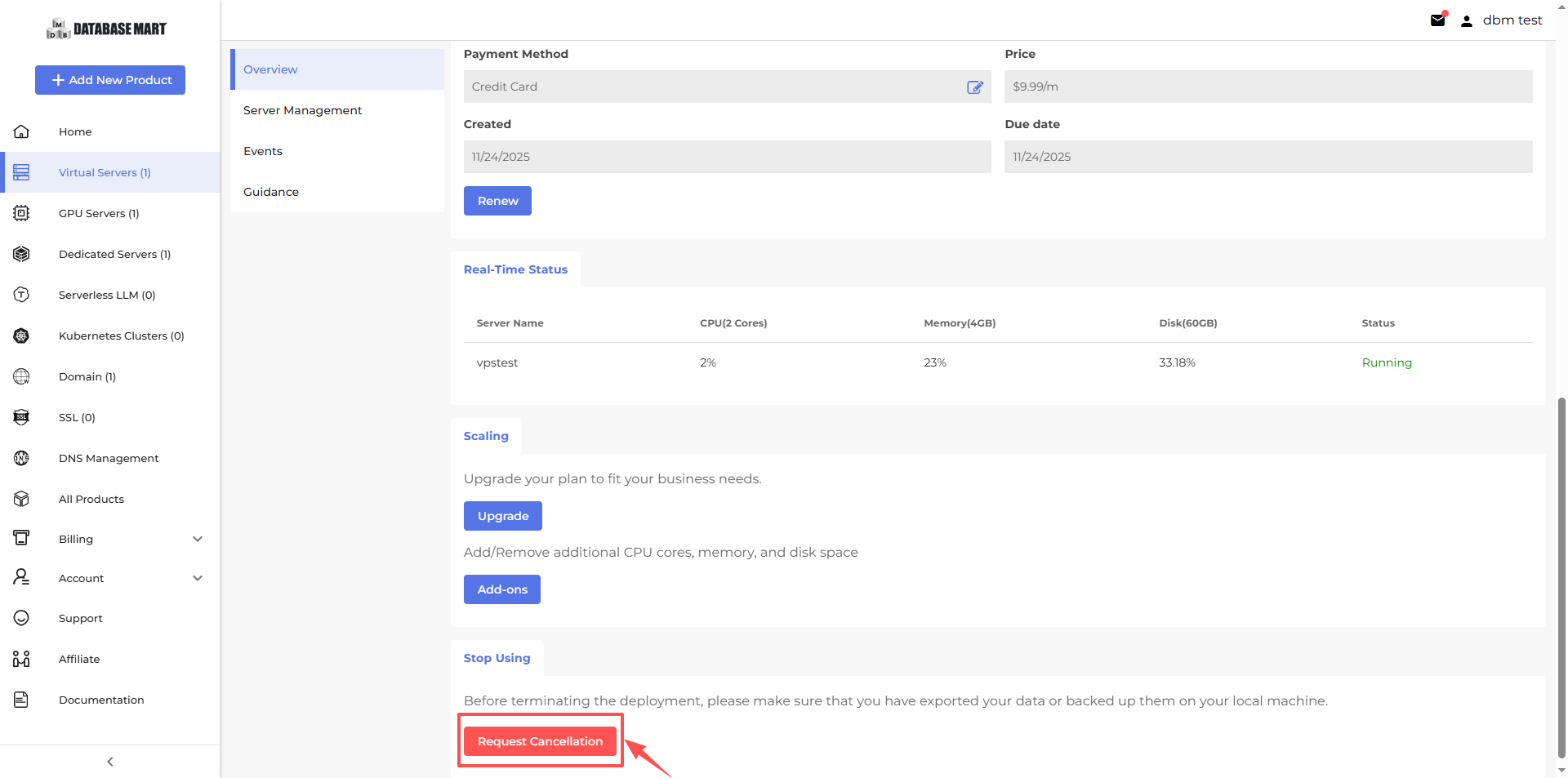
Reboot/Shut Down Service
If your server freezes or you can’t log in, you can use the reboot button to restart it.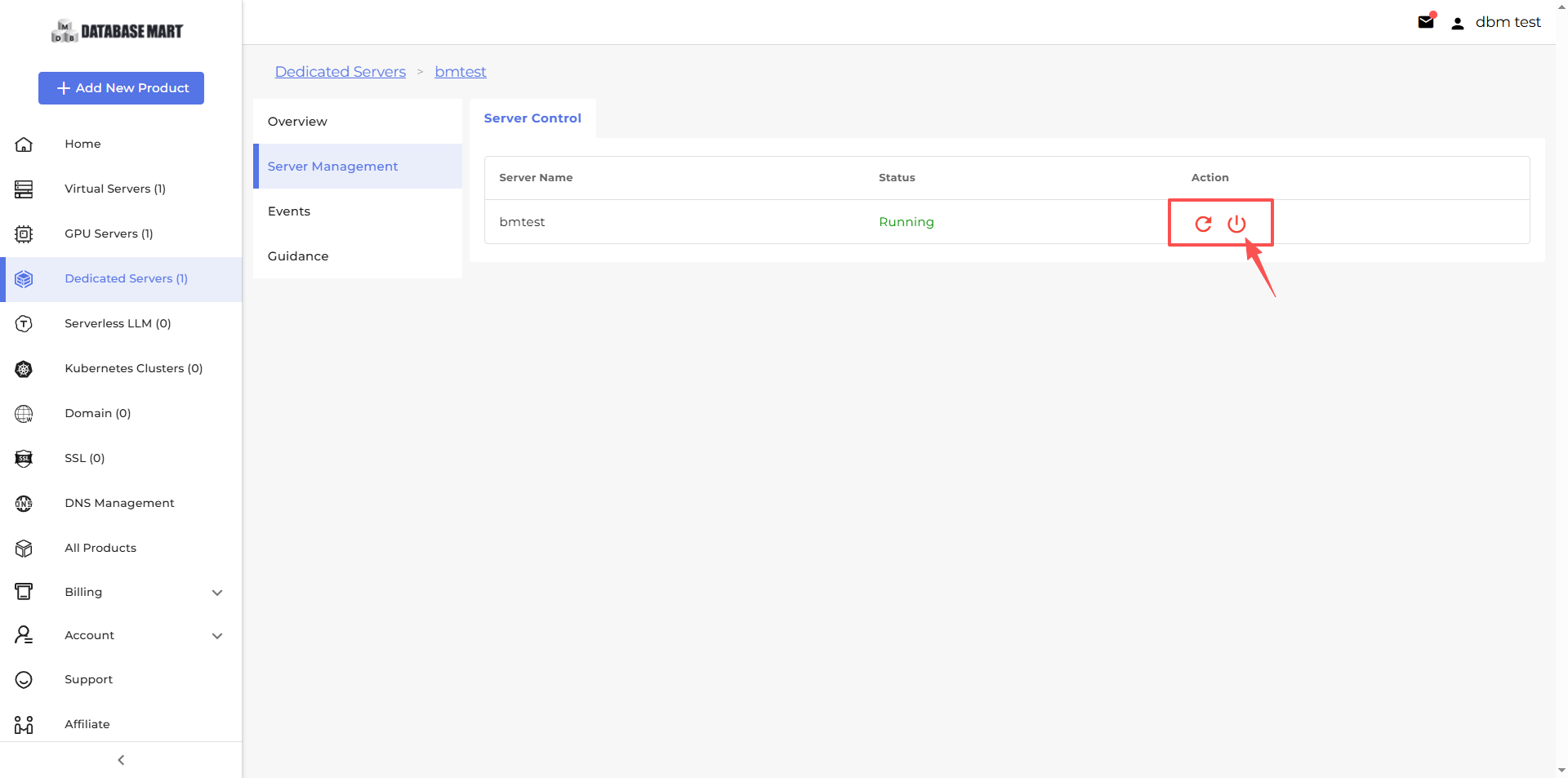
Service Restore(Only for VPS)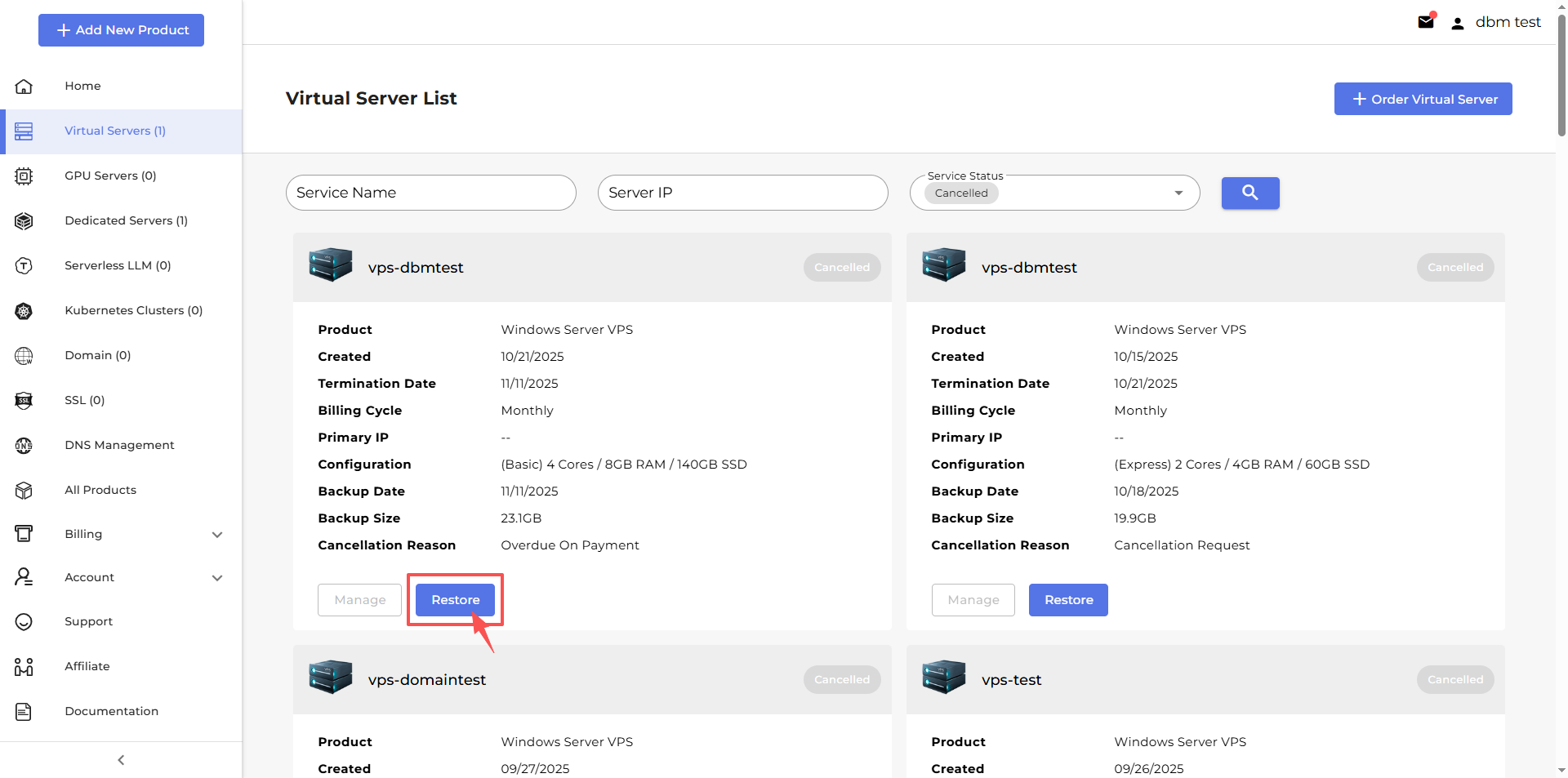
DNS Management
The DNS Management section helps you manage your domain name resolution settings, including adding new domains (Zones) and configuring specific DNS records.
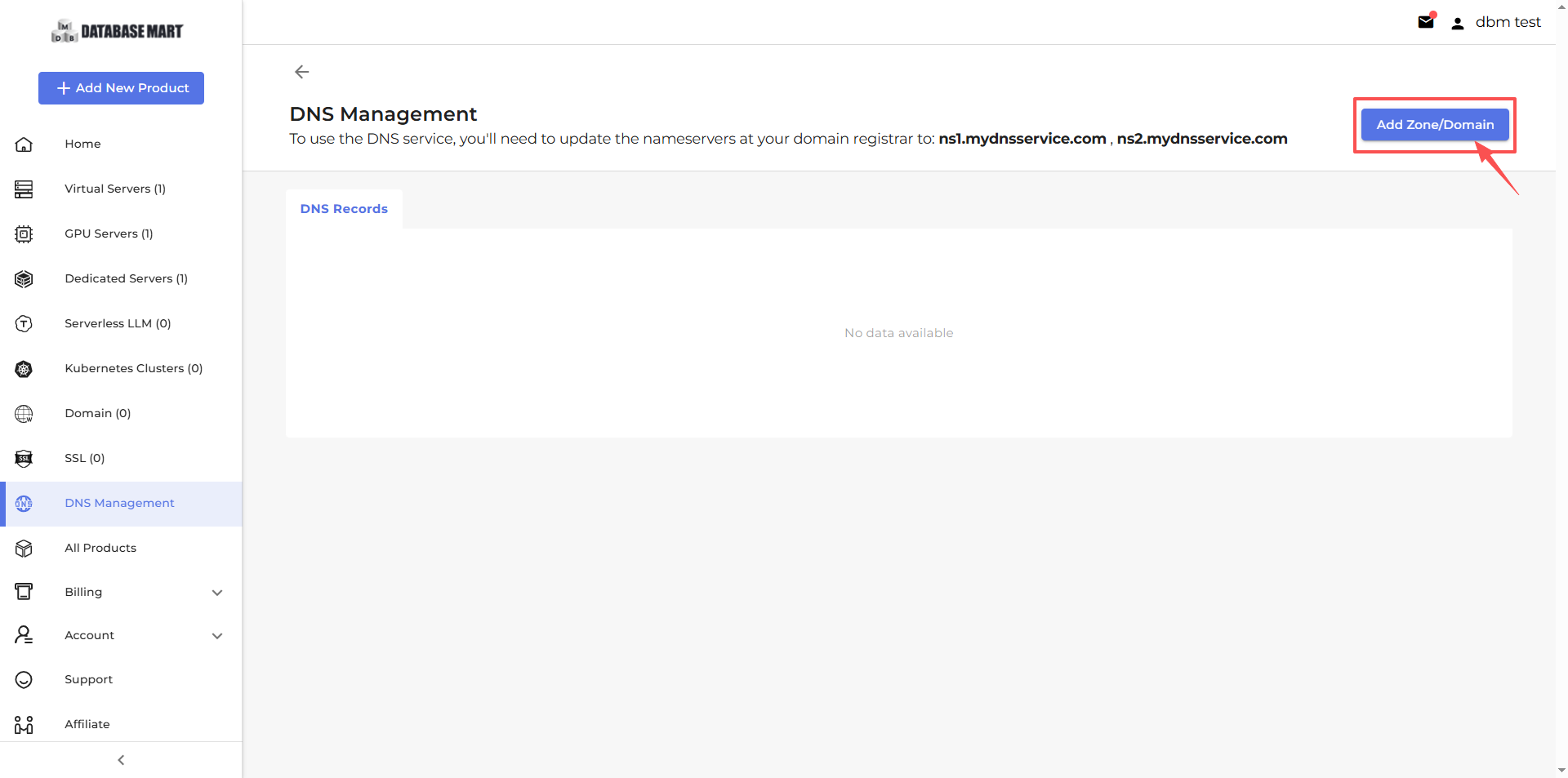
Add Zone/Domain
Add new domains or zones to your account for DNS management:
- Step 1: Click “Add Zone/Domain”.
- Step 2: Enter the domain name, such as example.com.
- Step 3: Click “Confirm” to complete the addition.
Add DNS Record
Add specific DNS records to a domain name to resolve it to a server or other service.
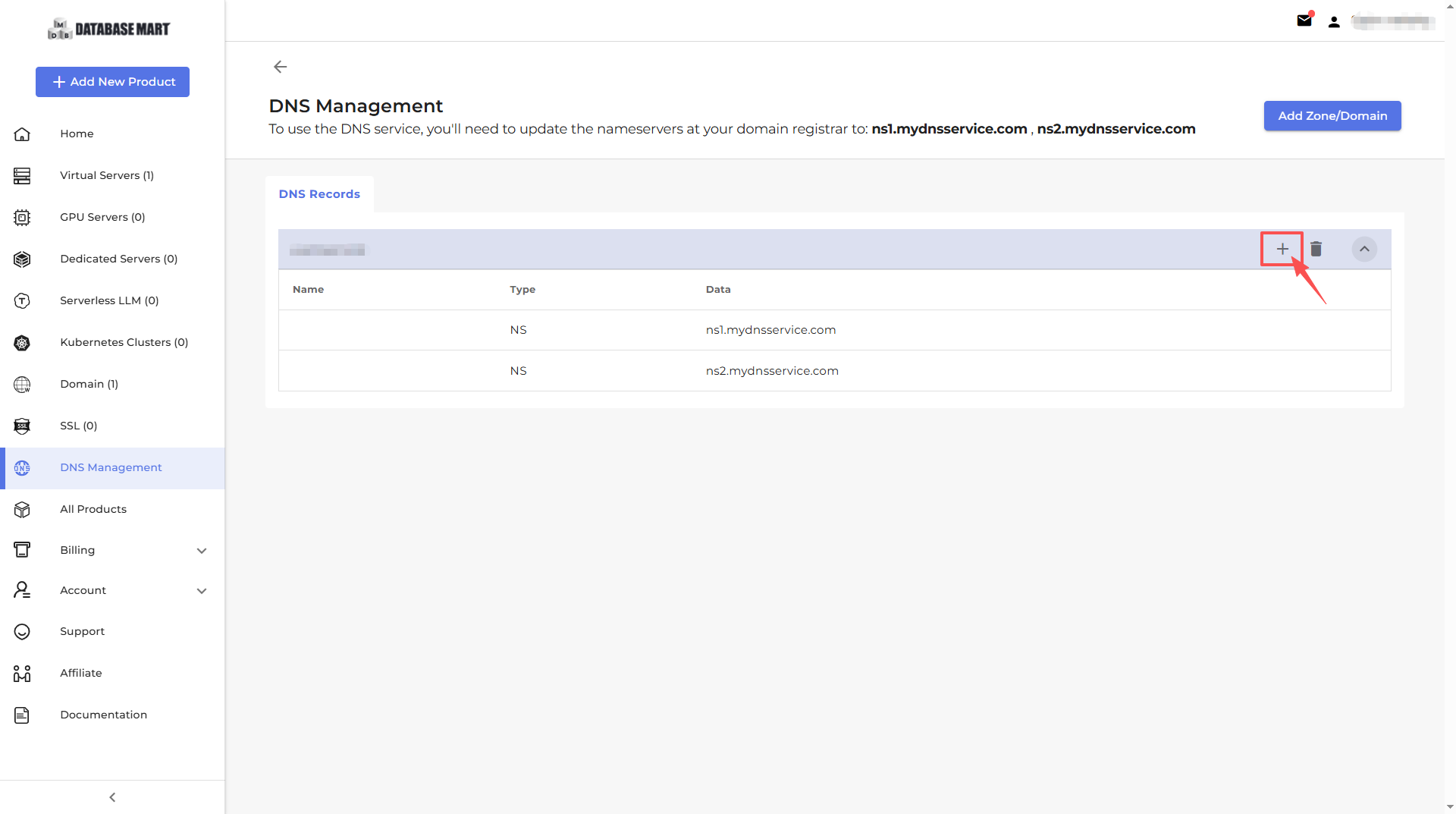
Step 1: Select the domain zone where you want to add the record.
Step 2: Click "Add DNS Record. "
Step 3: Choose the record type (A, CNAME, MX, TXT, etc.).
- A Record: Points a domain name to an IPv4 address
- MX Record: Mail exchange record
- NS Record: Advanced configuration
- TXT Record: Used for verification or other custom information
- CNAME Record: Points a domain name to another domain name
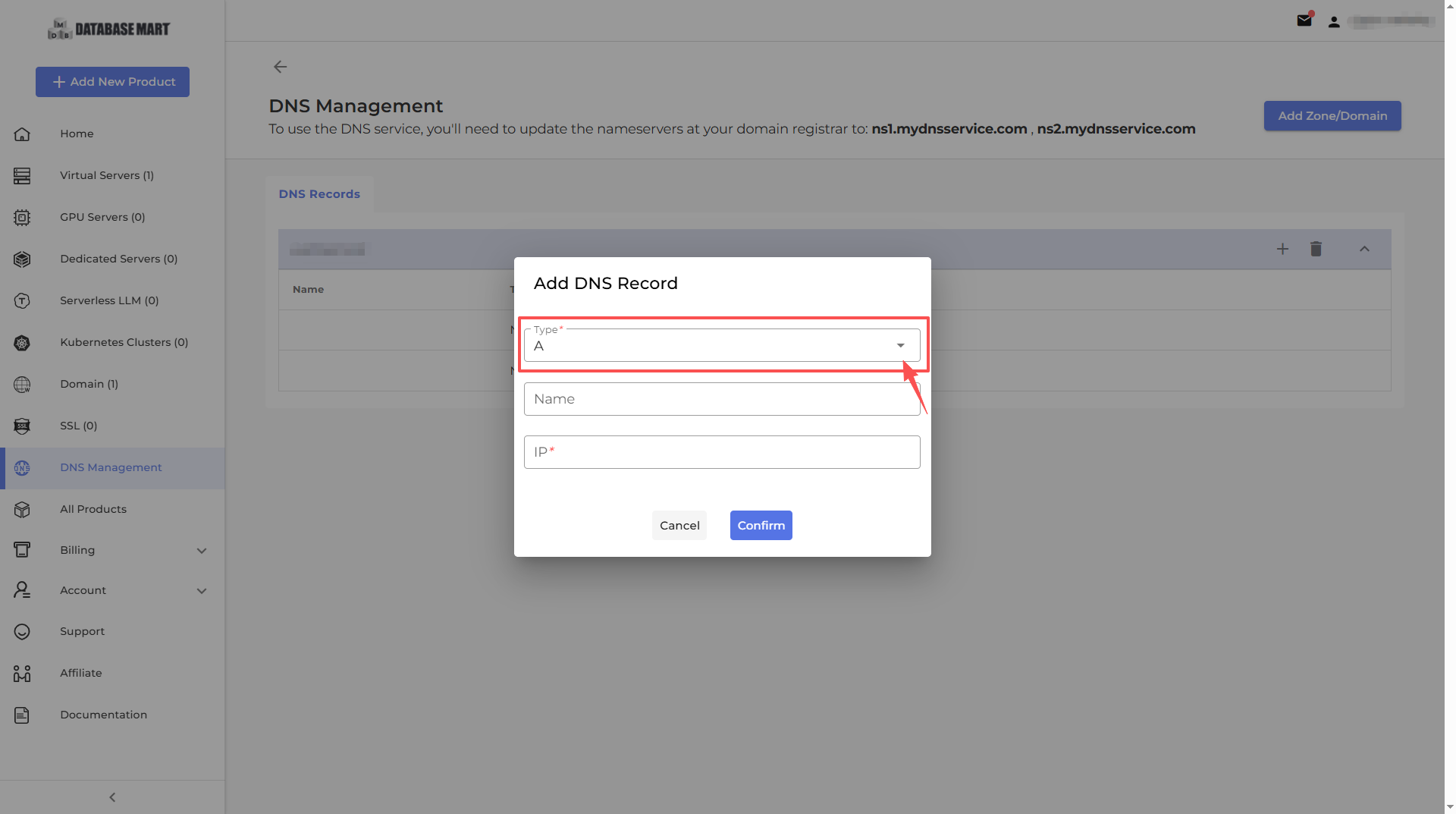
Step 4: Enter the record details, such as IP address, target domain, or priority.
Step 5: Click ”Confirm“ to save the record
Note / Important Points:
- Ensure the IP address, domain name, or other record values are correct to avoid service interruptions.
- DNS changes may take 5–30 minutes to propagate globally due to caching.
- When adding subdomains, make sure the parent domain exists and is properly configured.
- Incorrect records can lead to inaccessible websites or services.
Affiliate Operations
The Affiliate Operations section lets you manage referrals, customize your affiliate links, and request withdrawals in one place.
Customize Your Affiliate Link
You can create and customize your affiliate link to share with others and track referrals.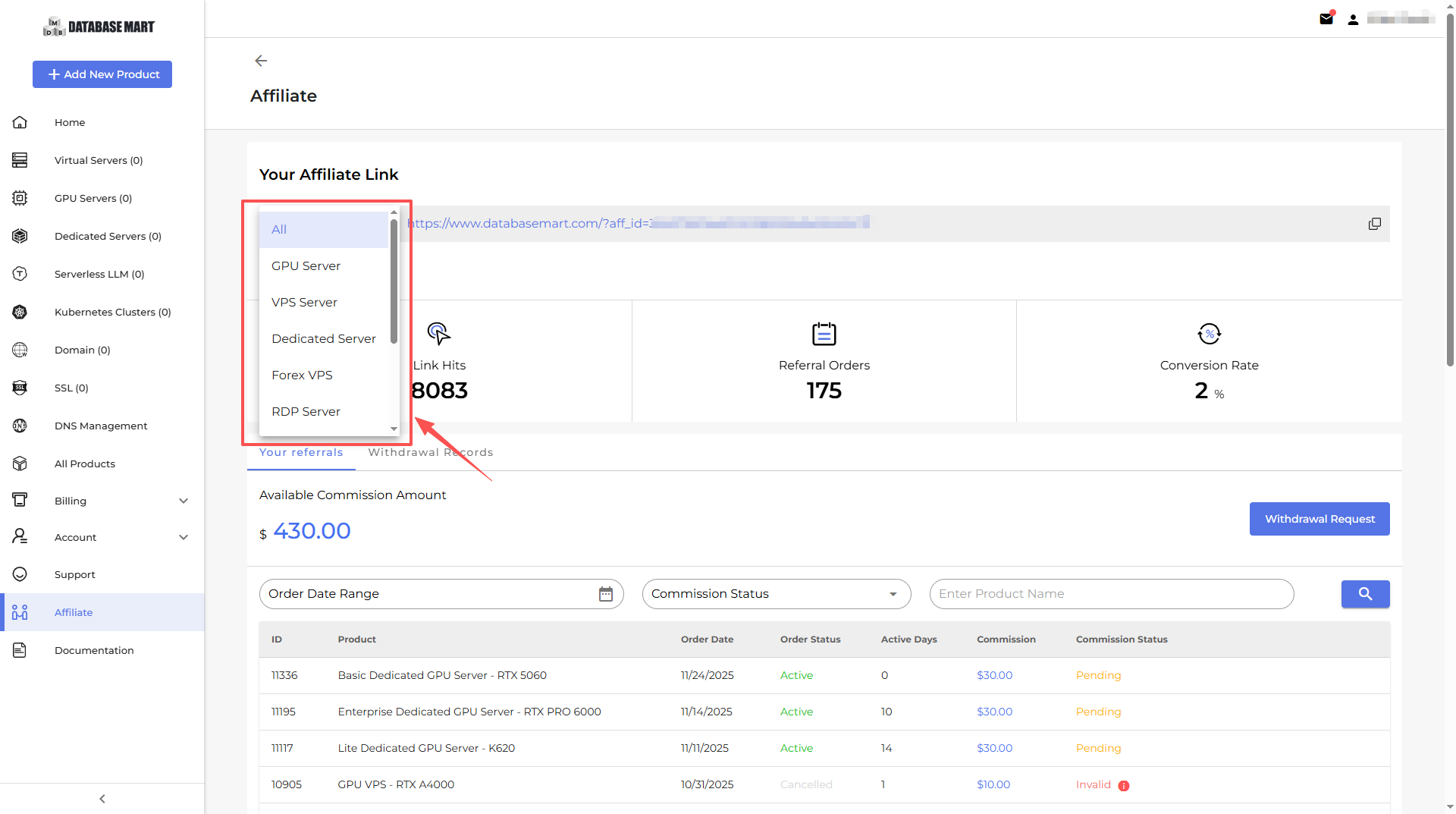
Withdrawal Request
Submit a request to withdraw your affiliate earnings to your preferred payment method.