


How to Change the Nameservers of Your Domain from the Client Area
Introduction
Changing or updating your domain nameservers allows you to point your domain to a different hosting provider or DNS service.
This guide walks you through how to change the nameservers of your domain directly from the Client Area of your billing account. Following this tutorial will help ensure that your domain is properly linked to your hosting environment and that your website resolves correctly.
Prerequisites
Before you begin, make sure you have:
- A domain registered or transferred to Database Mart.
- Login access to your Client Area at https://console.databasemart.com/domain/
- The new nameservers you wish to use (for example, ns1.exampledns.com, ns2.exampledns.com).
Steps to Change the Nameservers of Your Domain
Step 1: Locate the Domain
Log in to Database Mart and locate the domain you'd like to update the nameservers. Click Manage to go to the management interface.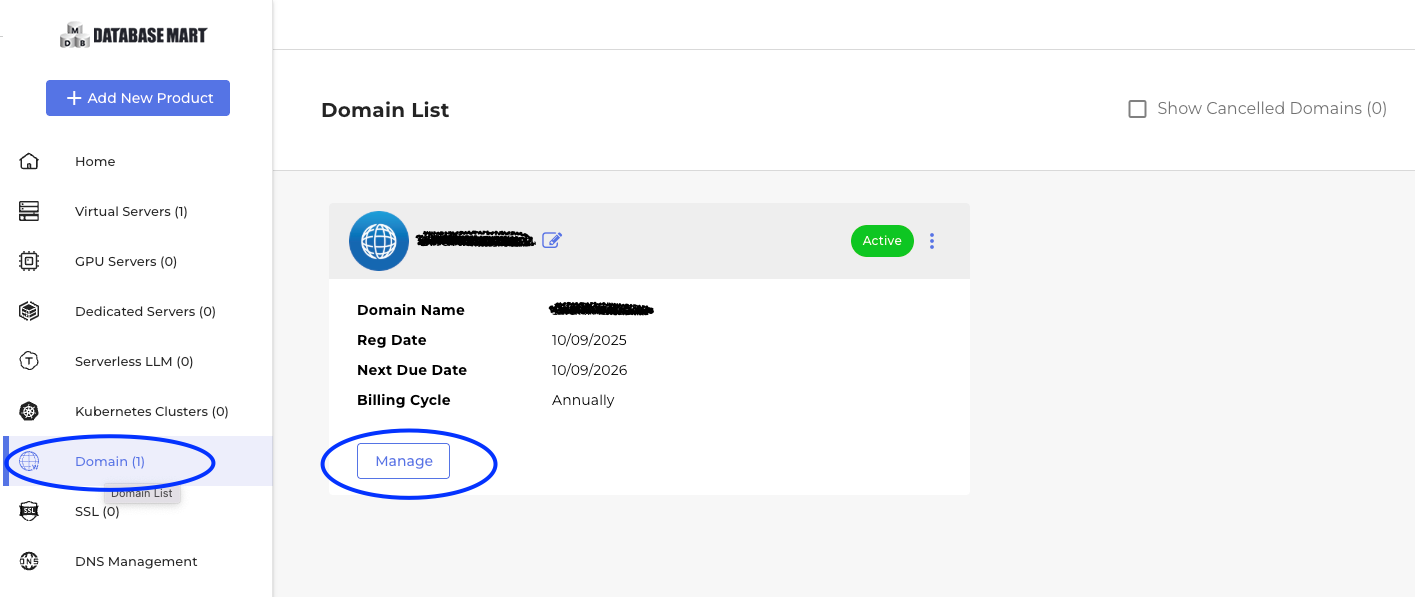
Step 2: Update Nameservers
Go to the NS & DNS page, and choose the "Customizing your name server and you won't be able to manage DNS" option.
Then, input the new name servers and click Confirm.
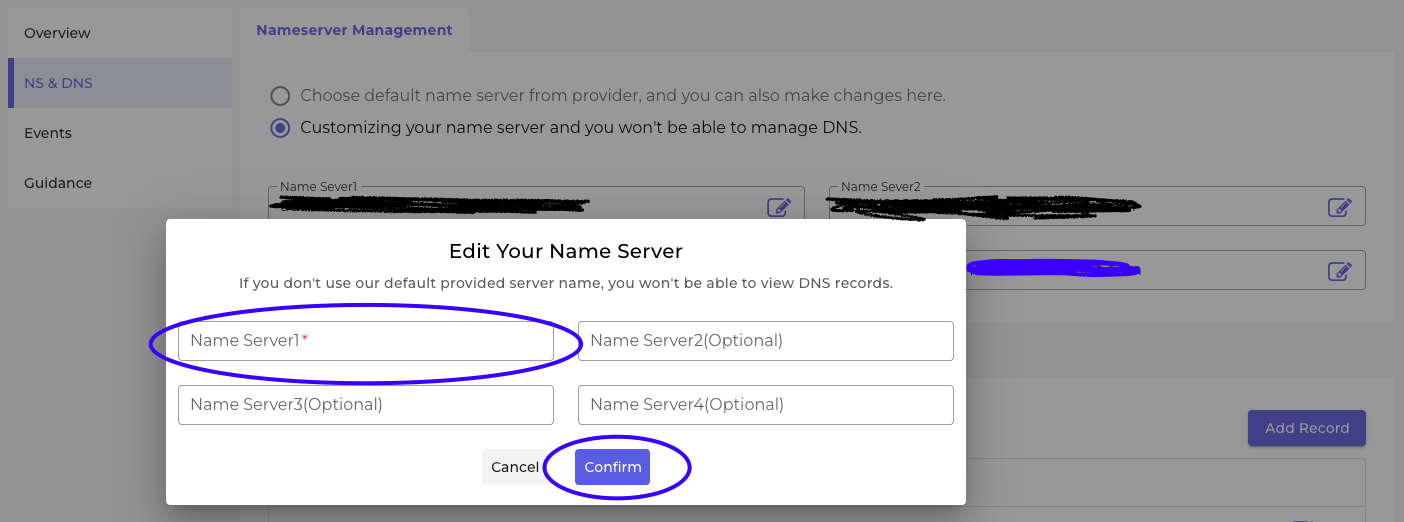
Please be aware that changes can take up to 24 hours to propagate.