


How to Download an Issued SSL Certificate File in New Client Control Panel
Introduction
There are two ways to download the certificate file:
fiber_manual_record Download the SSL file provided in technical contact email
fiber_manual_record Download the SSL file from the Client Control Panel
fiber_manual_record Download the SSL file provided in technical contact email
fiber_manual_record Download the SSL file from the Client Control Panel
Method 1: Download the attached SSL file in the technical contact email
When the certificate is issued, the SSL file will be sent to your technical contact email account, which was created/ registered when you placed the new SSL order.
Here is an example of a technical contact email :
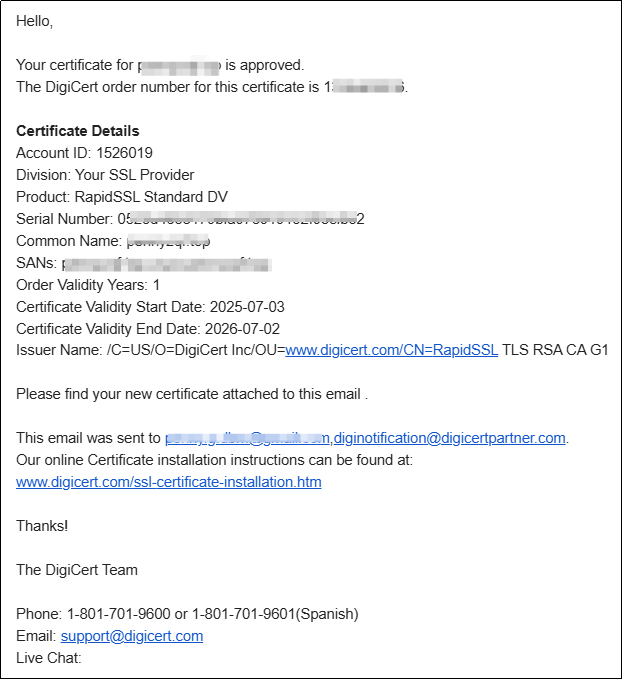
Please download the certificate file from the attachment.
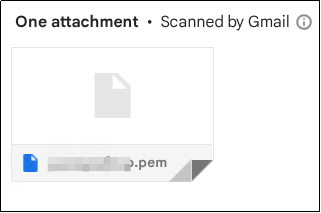
Note: The certificate file downloaded from email is a .pem file. If another format of the certificate file is needed, please follow the next step: Download the SSL file from the Client Control Panel.
Method 2: Download the SSL file from the Client Control Panel
2.1 Log in to the Client Control Panel and locate the SSL service
- Log in to the Client Control Panel (https://console.databasemart.com/).
- Click SSL > Manage. Choose the SSL service.
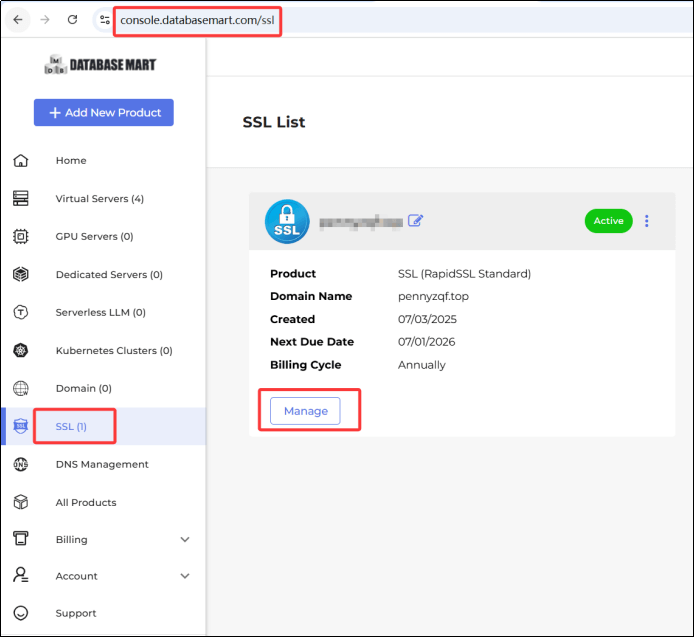
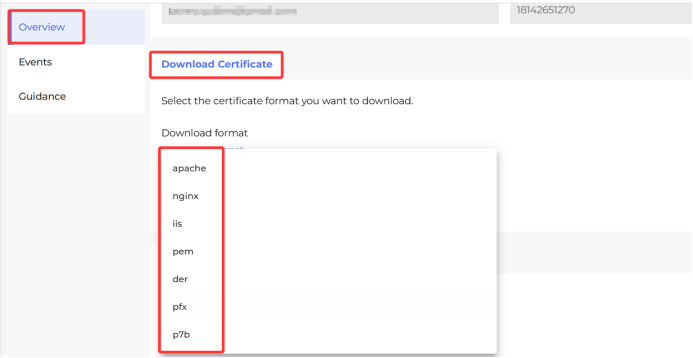
Scroll down the page to the bottom. Click Download Certificate.
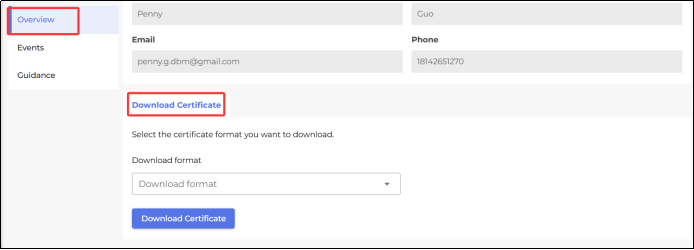
2.2 Download certificate
Download format: Select the certificate format you want to download.
3. The Next Step
To apply the SSL on Windows IIS, please refer to How to Apply an SSL on Windows IIS.