


How to Complete a Certificate Request
Introduction
If a CSR code is generated on a Windows-based server, completing the certificate request is an important step before applying a certificate to your site.
To complete a certificate request, please read How to Download an Issued SSL Certificate File and download the certificate file in .crt /.pem format.
After completing the following steps, you will get a .pfx certificate file and its import password.
Prerequisites
Before starting, ensure you have:
- Issued Certificate File: The .crt or .pem file you downloaded from your SSL provider after the CSR was approved. Choose a cheap SSL certificate before proceeding.
- Windows Server with IIS and CSR Already Generated
Steps to Complete a Certificate Request
Step 1: Log into the IIS server
Log in to the IIS server where the CSR was generated.
Step 2: Upload the .crt or .pem file
Upload the .crt/.pem file to the server.
Step 3: Complete a certificate request
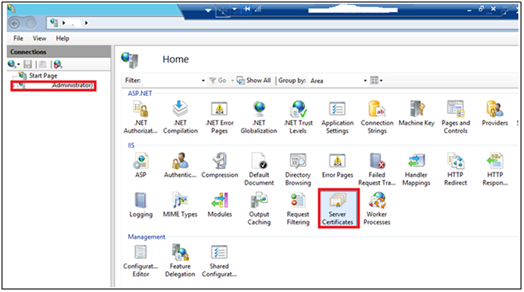
Open IIS. Click Server Certificates.
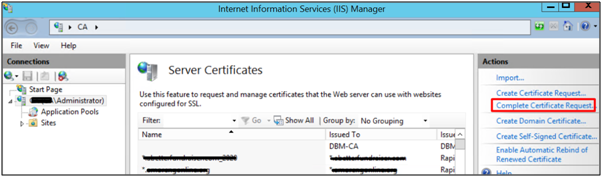
Click Complete Certificate Request on the right side of the panel.
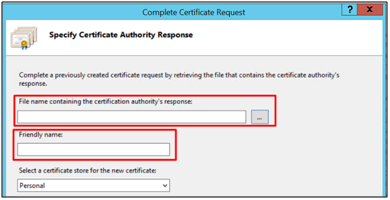
Choose the .crt/.pem file path of the certificate you uploaded before. Name the certificate. Click OK.
Step 4: Get the .pfx file of the certificate
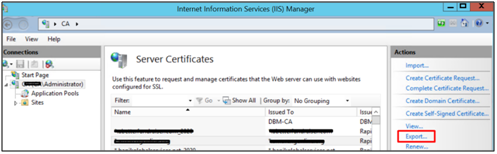
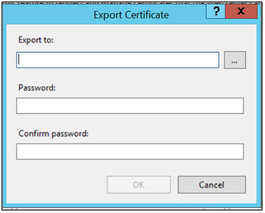
Select the certificate and click Export.
Choose the export path. Set a password, which will be used to import the certificate later.
Note:
The export path is the place where you’d like to export the .pfx file.
Please remember/write down the password because it is needed to import the certificate later.
You will get a .pfx file of the certificate.

The Next Step
To apply an SSL on Windows IIS, please refer to How to Apply an SSL on Windows IIS.
For how to apply an SSL on Apache, please refer to How to Apply an SSL on Apache.
For how to apply an SSL on Nginx, please refer to How to Apply an SSL on Nginx.